


KTouch is a touch typing tutor from KDE Education project. It is used to learn and practice touch typing. It will show where you should place every finger on the keyboard. Also it provides the text to train on, displays which key you should press next with correct finger to use. Furthermore it will adjust to different levels depending on how you’re doing at present to enhance your typing skills.
kTouch indicates the keys that needs to be pressed and the finger that you should place for that corresponding word on the screen. So you don’t have to look down your keyboard for each key. Using KTouch, day by day you can learn how to type fast and as well as accurate.
Initially, KTouch is developed and maintained by Håvard Frøiland and currently it is maintained by a programmer named Andreas Nicolai. This program is free to use, redistribute and/or modify it under the terms of the GNU General Public License Version 2.
Features
– Supports various keyboard layouts and you can easily add own keyboard layouts.
– A no of training lectures are included by default such as English, German, and French etc.
– You can add and modify training lectures using the built-in lecture editor.
– Detailed training statistics help you to find possible typing problems. (Wrong key typed)
– Calculates typing speed and your accuracy on-the-fly and displays them while you type.
– Many settings (including the colour scheme of the program) can be modified by the user.
– During training the level can be adjusted automatically according to your typing skill.
– If you type fast and correctly you will move a level up, otherwise stay in the level or even move down.
Install KTouch on Ubuntu/Linux Mint/Debian
KTouch is available in the default repositories of Ubuntu, Debian and its derivatives. So you can install either from Synaptic Manager or from Terminal.
sudo apt-get install ktouch
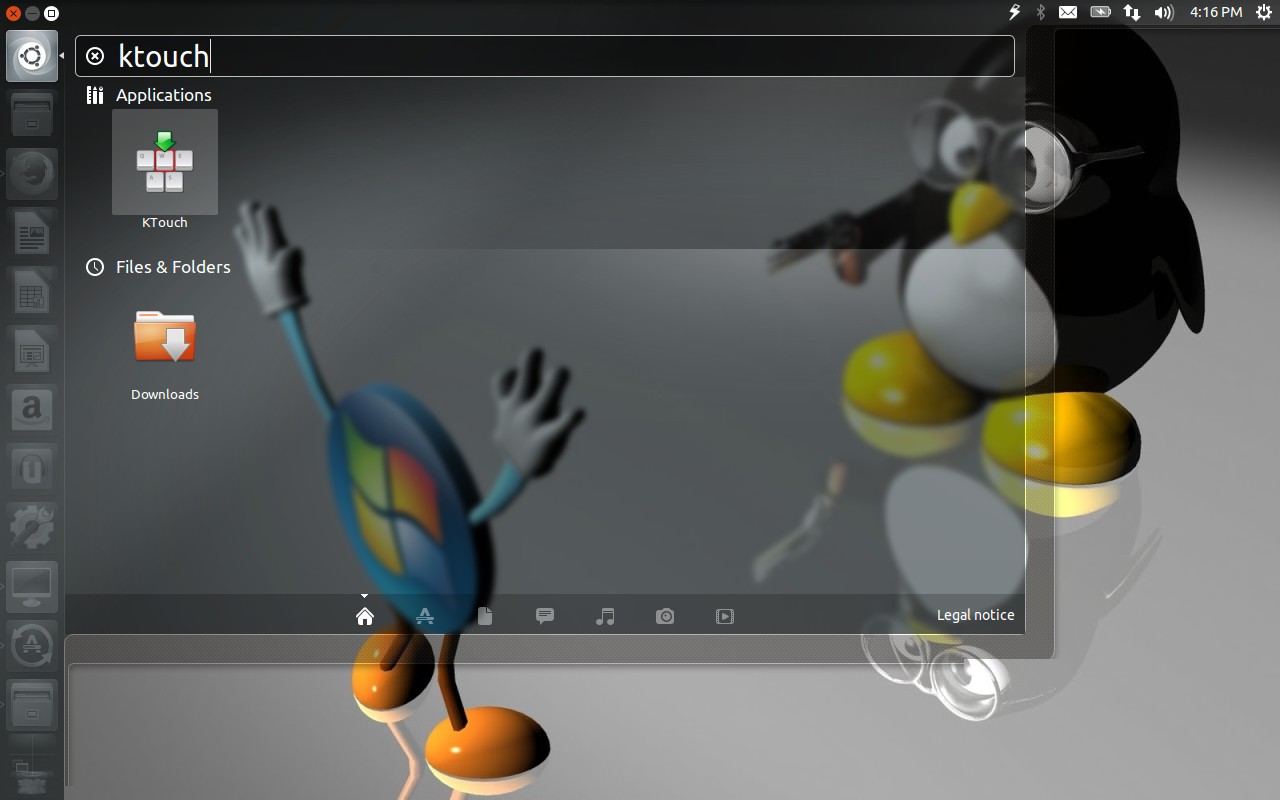
Launch it either from Dash or Menu.
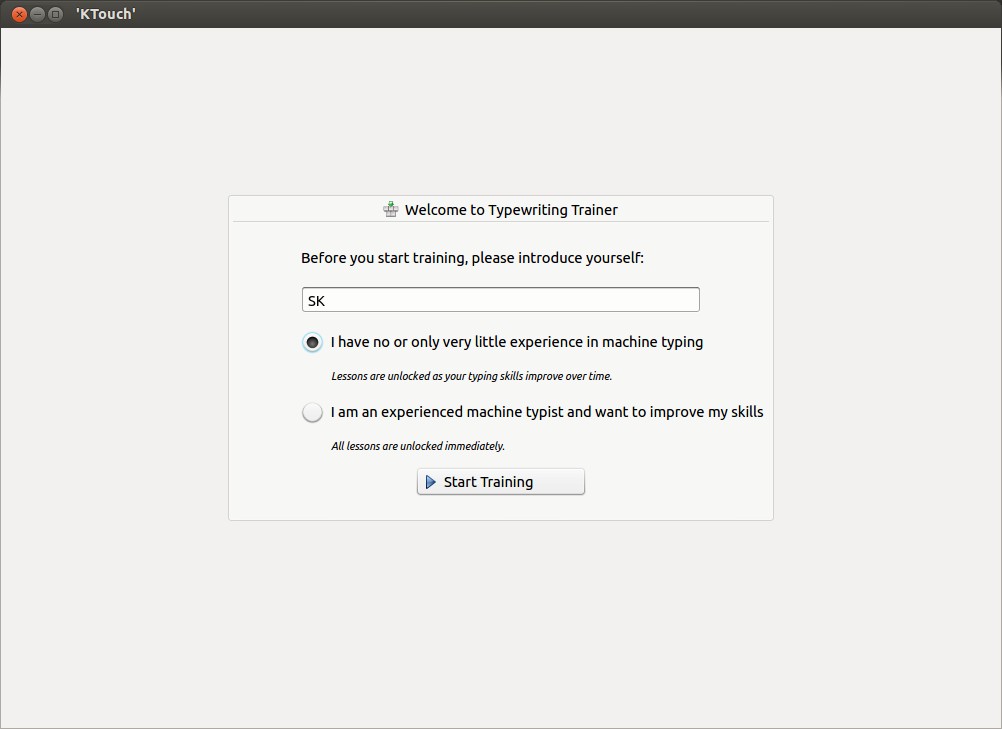
 At the first launch, you’ll be asked to enter a name to start training and select the level of your proficiency in typing. If you’re a beginner, select the first option or select the second option if you’re experienced typist and just plan to improve the typing speed. Then click Start Training to begin.
Be mindful that if you select second option, all lessons will be locked immediately.
As i am a beginner, I select first one.
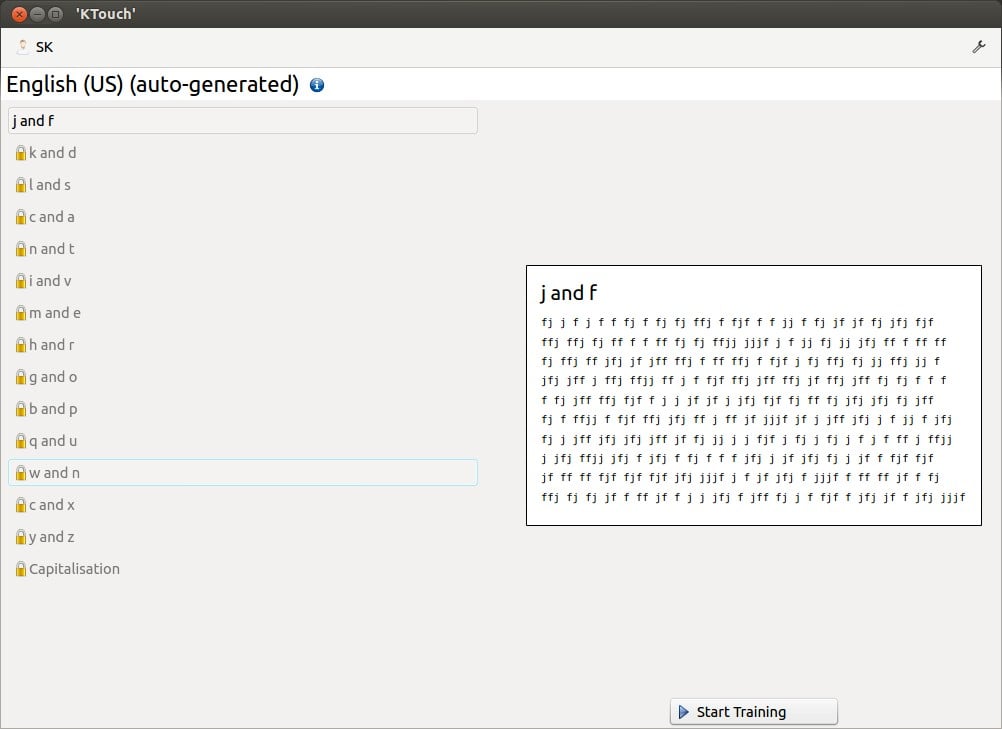
 Now you’ll be redirected to your workspace where some letters available to practice. Select the combination of the letters to start practising. Click Start Training to begin.
 Now the typing test has been started. Just type the letter which is blinking on your KTouch screen. You will notice that the cursor automatically moves to next letter if you press the correct letter and will make that letter blink that needs to be typed next.
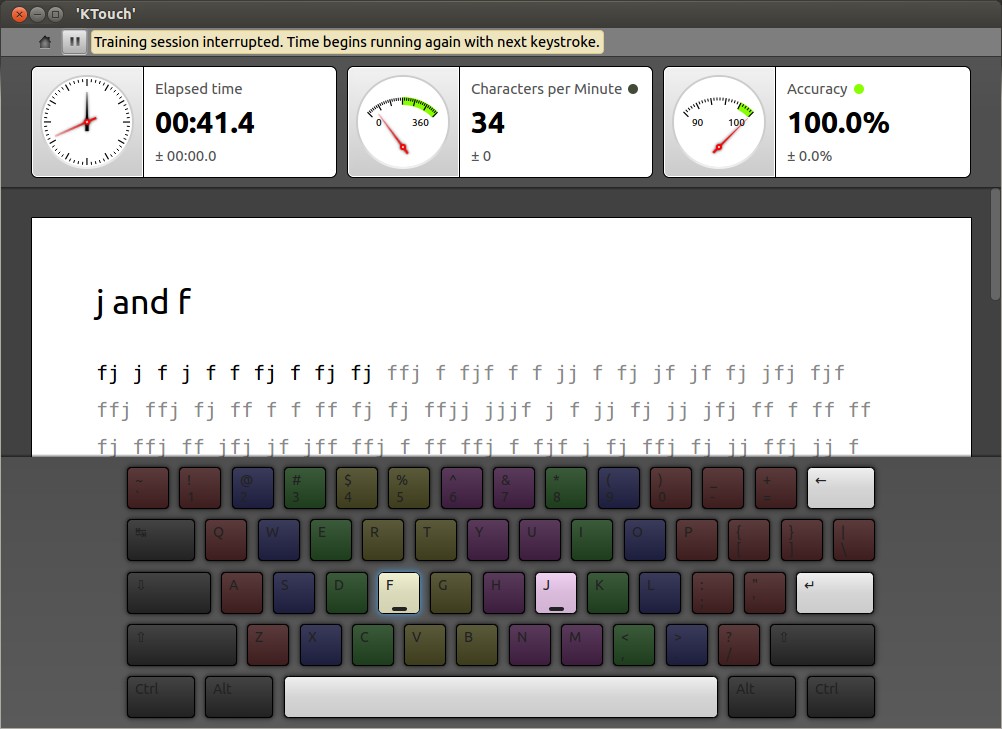 If you type the wrong letter, it will be automatically turned to red and your accuracy will be reduced down on the top of the KTouch interface.
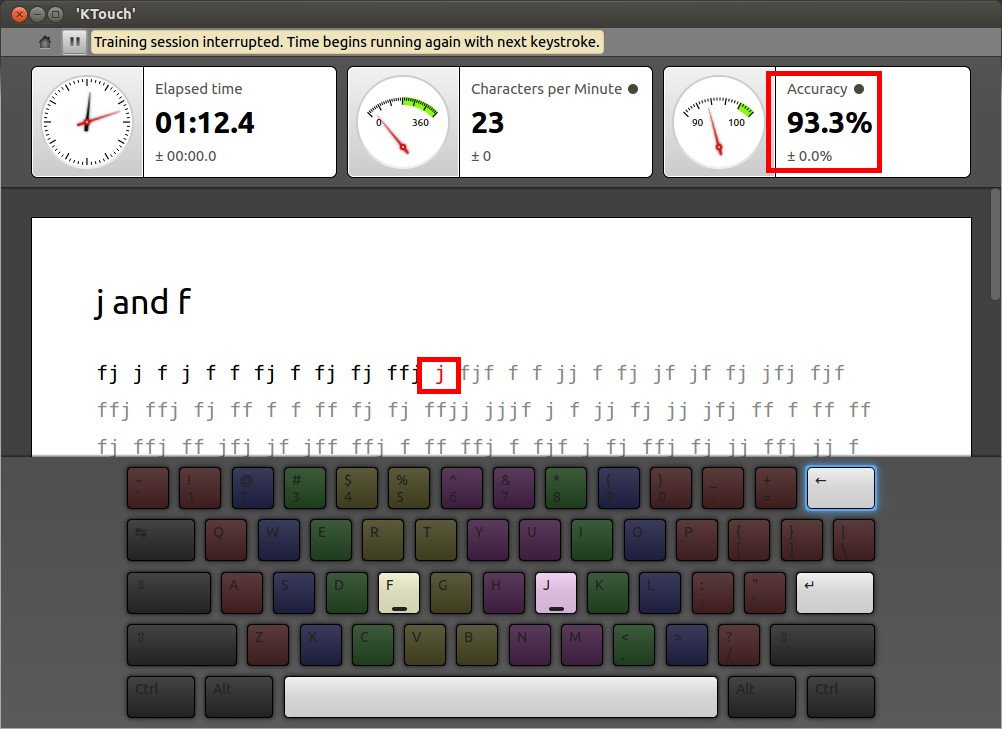 Also KTouch allows you to correct the error. The Backspace will start to blink automatically if you press the wrong character. So you can use the Backspace key to correct the error and again type the correct letter.
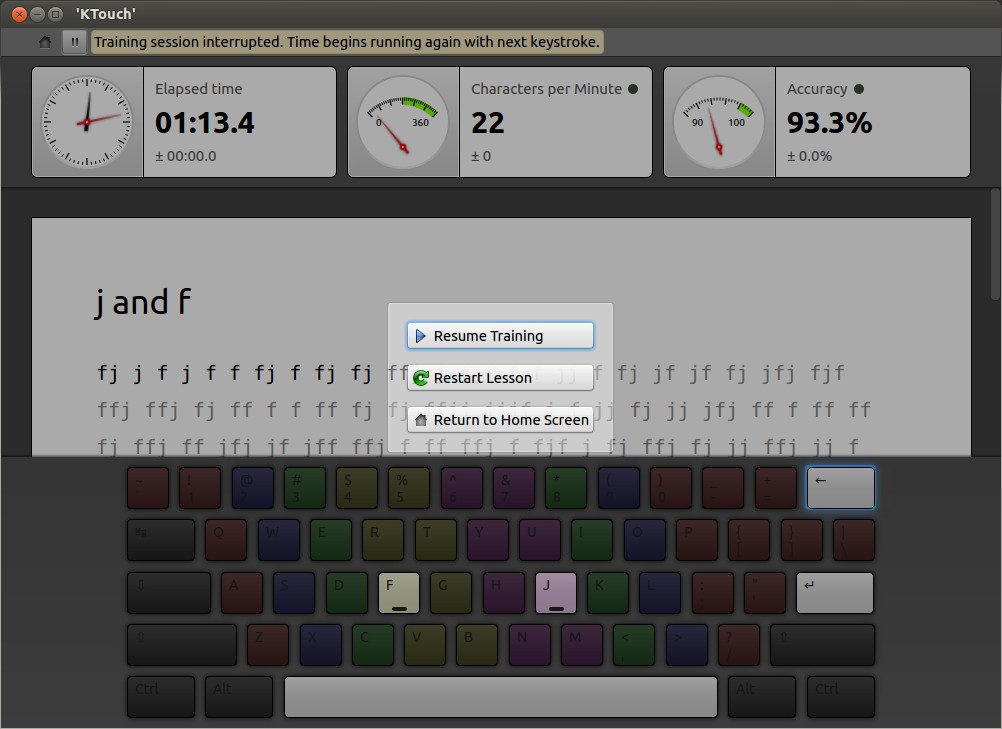
If you want to resume/restart the current lesson or return to the home screen, press the Home button on the top left corner.
 That’s it. KTouch is very easy to install and use. If you want to enhance your touch typing skills, it is a worth trying tool. Enjoy!



