


Zabbix is an enterprise-class open source distributed monitoring solution that can be used to monitor and track performance and availability of network servers, devices and other IT resources. It supports distributed and WEB monitoring, auto-discovery, and more.
I tested this how-to On Debian 7, although it should work on other Debian/Ubuntu derivatives. For the testing purpose, I will use two machines.
Zabbix Server System:
Operating system: Debian 7
IP Address: 192.168.1.200/24
Hostname: server.unixmen.com
Zabbix Client System:
Operating system: Ubuntu 13.04
IP Address: 192.168.1.100/24
Hostname: sk
First let us start from server side.
Prerequisites
Before installing Zabbix, we should have install and configure LAMP stack on server. To install and configure LAMP server On Debian 7 and Ubuntu 13.10, refer the following links.
– Install LAMP Server On Debian 7
– Install LAMP Server On Ubuntu 13.10
Server Side Configuration
Zabbix is found in the default repositories, but it may be outdated. So to install most recent version, download the latest repository configuration package from here.
Or you can download and install it using commands:
# wget http://repo.zabbix.com/zabbix/2.2/debian/pool/main/z/zabbix-release/zabbix-release_2.2-1+wheezy_all.deb
# dpkg -i zabbix-release_2.2-1+wheezy_all.deb
Now update package lists and Zabbix server using commands:
# apt-get update
# apt-get install zabbix-server-mysql zabbix-frontend-php
During installation, you’ll be asked to answer couple of questions regarding database configuration.
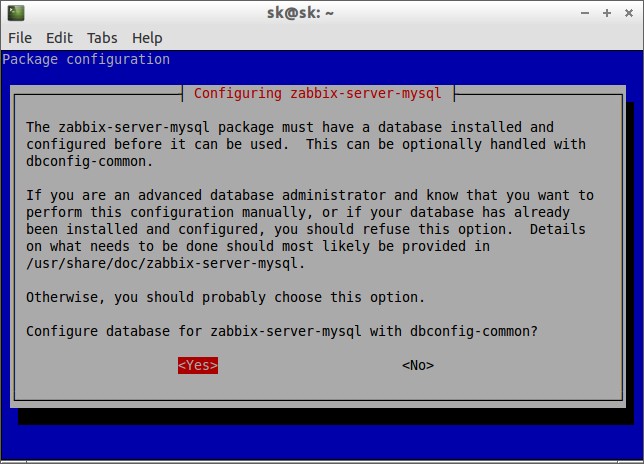 First it will ask you to enter the MySQL root user password.
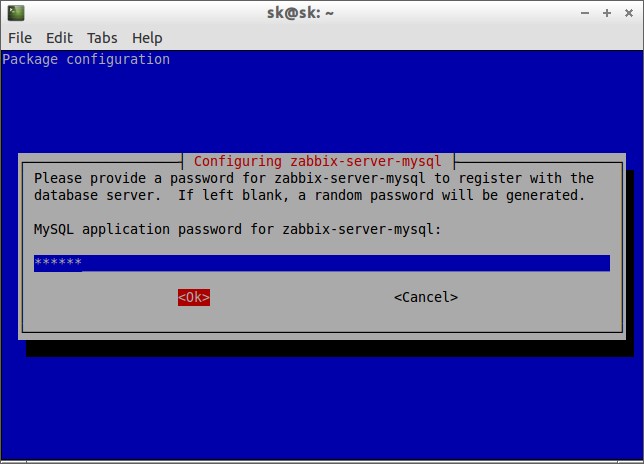
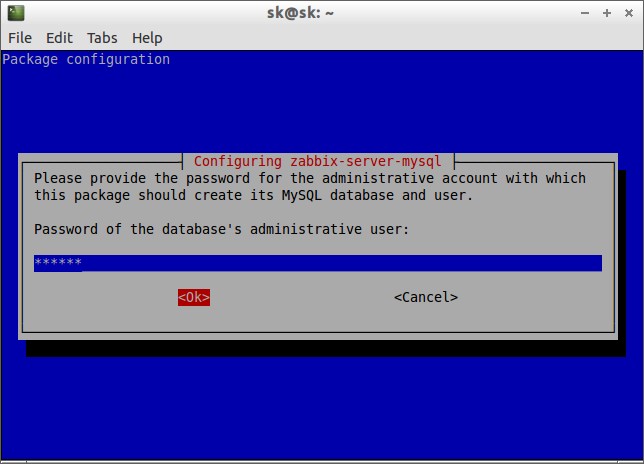 Then provide password for zabbix-server-mysql to register with your database server.
 Re-enter password:
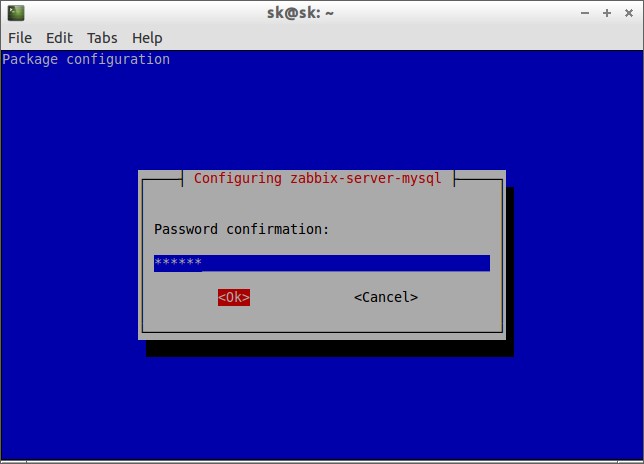 Now a database called ‘zabbix’ will be created along with user ‘zabbix’.
Please Note: For Debian 6 and earlier versions, you should create a new database and give proper permission to the database manually.
Next we will adjust some PHP settings for zabbix front-end.
Edit file /etc/apache2/conf.d/zabbix,
# nano /etc/apache2/conf.d/zabbix
Find the following lines and edit them as follows. If the lines doesn’t exists, add them.
[...]
php_value max_execution_time 300
php_value memory_limit 128M
php_value post_max_size 16M
php_value upload_max_filesize 2M
php_value max_input_time 300
php_value date.timezone Asia/Kolkata
[...]
It is mandatory, to adjust the correct time zone for you. Save and close the file.
Restart apache service:
# service apache2 restart
Access Zabbix Web Console
Open web browser and access the zabbix web console with URL: http://ip-address/zabbix or http://domain-name/zabbix.
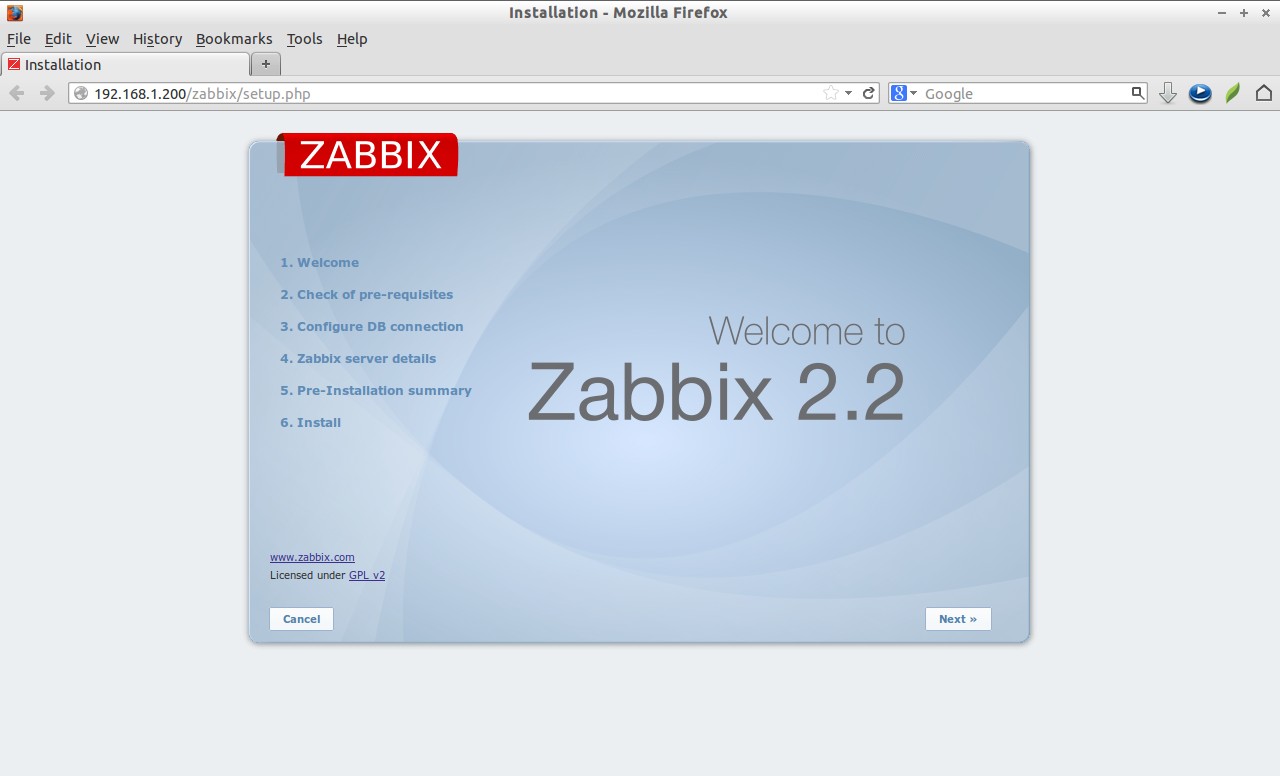
Click Next to continue:
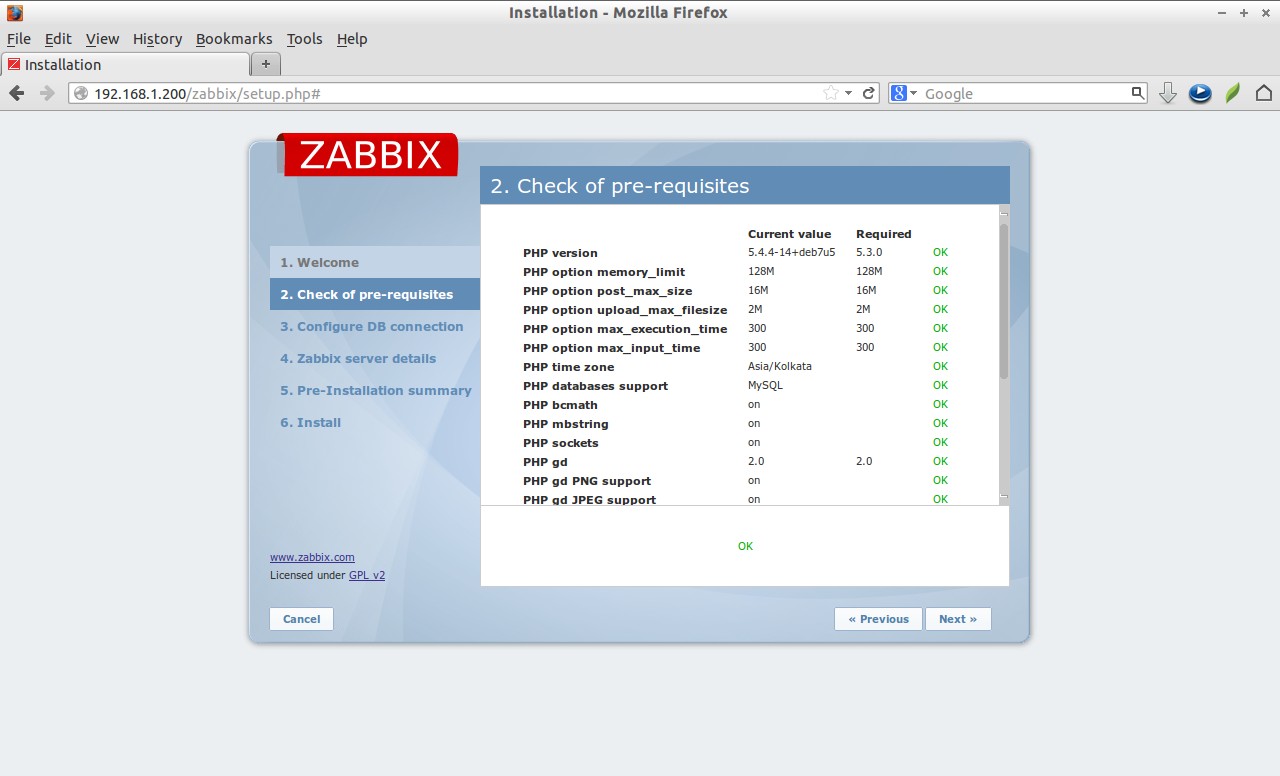
 It will check all prerequisites. If everything seems ok, click Next to continue.
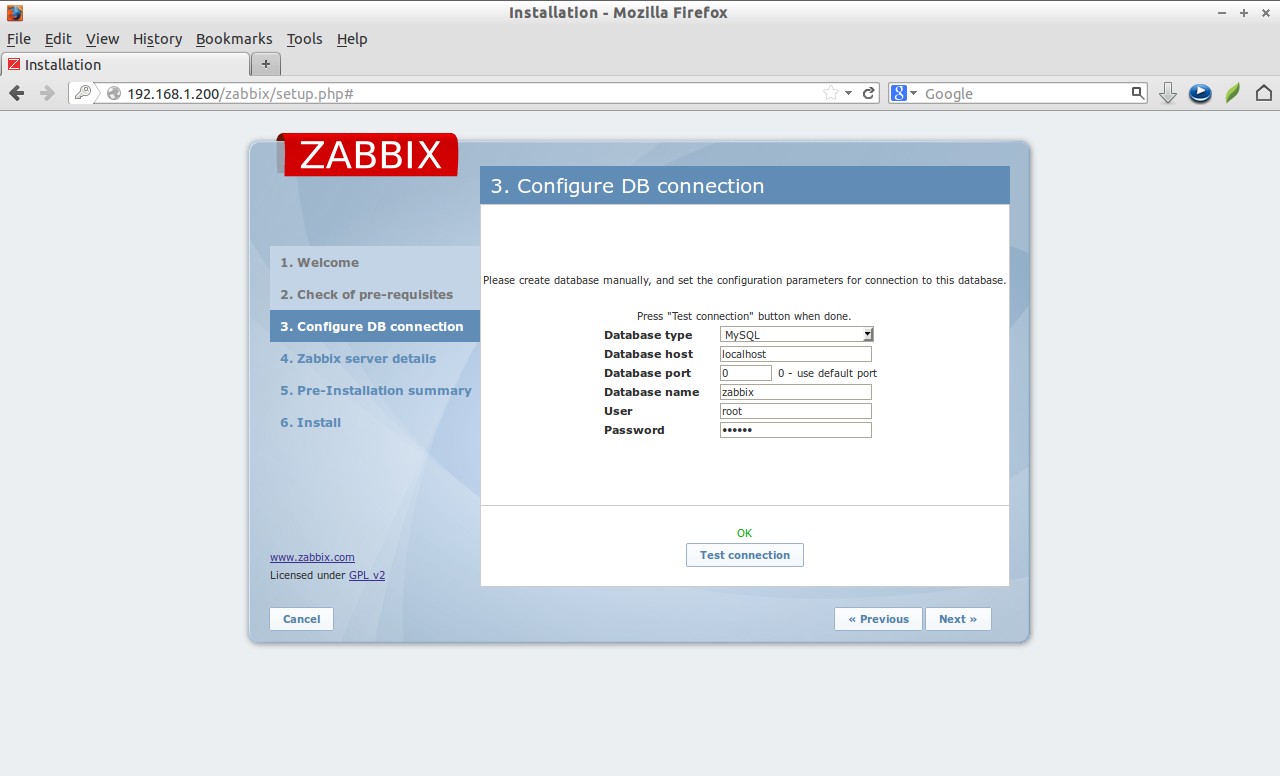
 Next enter the mysql administrative password and click Test connection. The database called ‘zabbix’ will be created automatically during the installation. If it says Ok, click Next to continue.
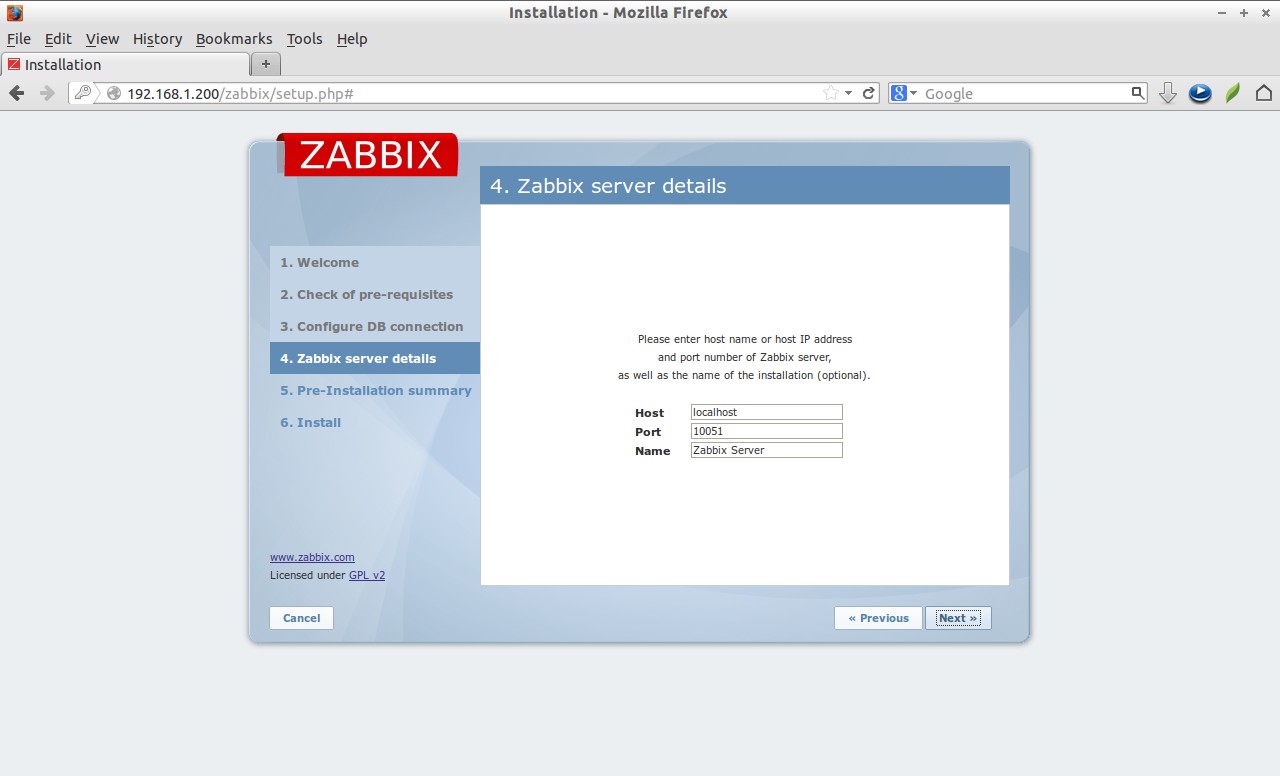
 Click next:
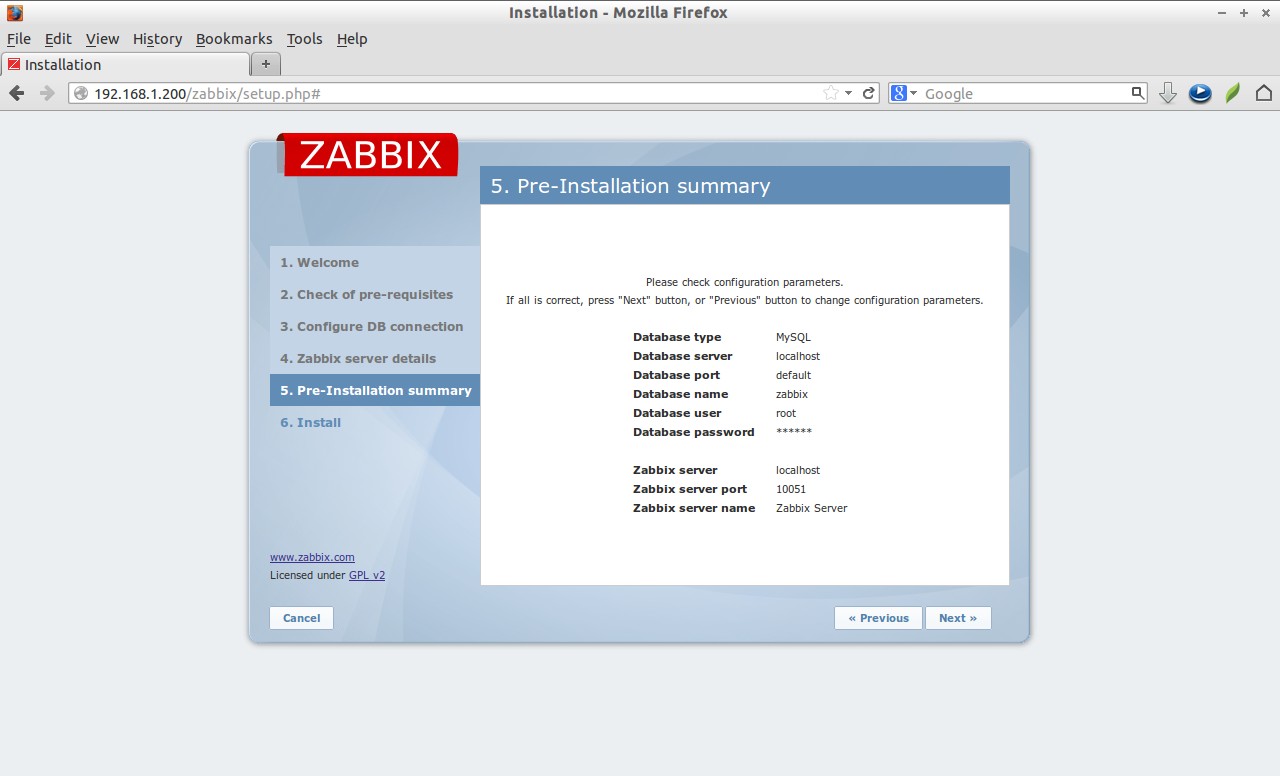
 Check configuration parameters once again and click Next to continue if all correct. If you want to change anything, just hit Previous button and do the changes.
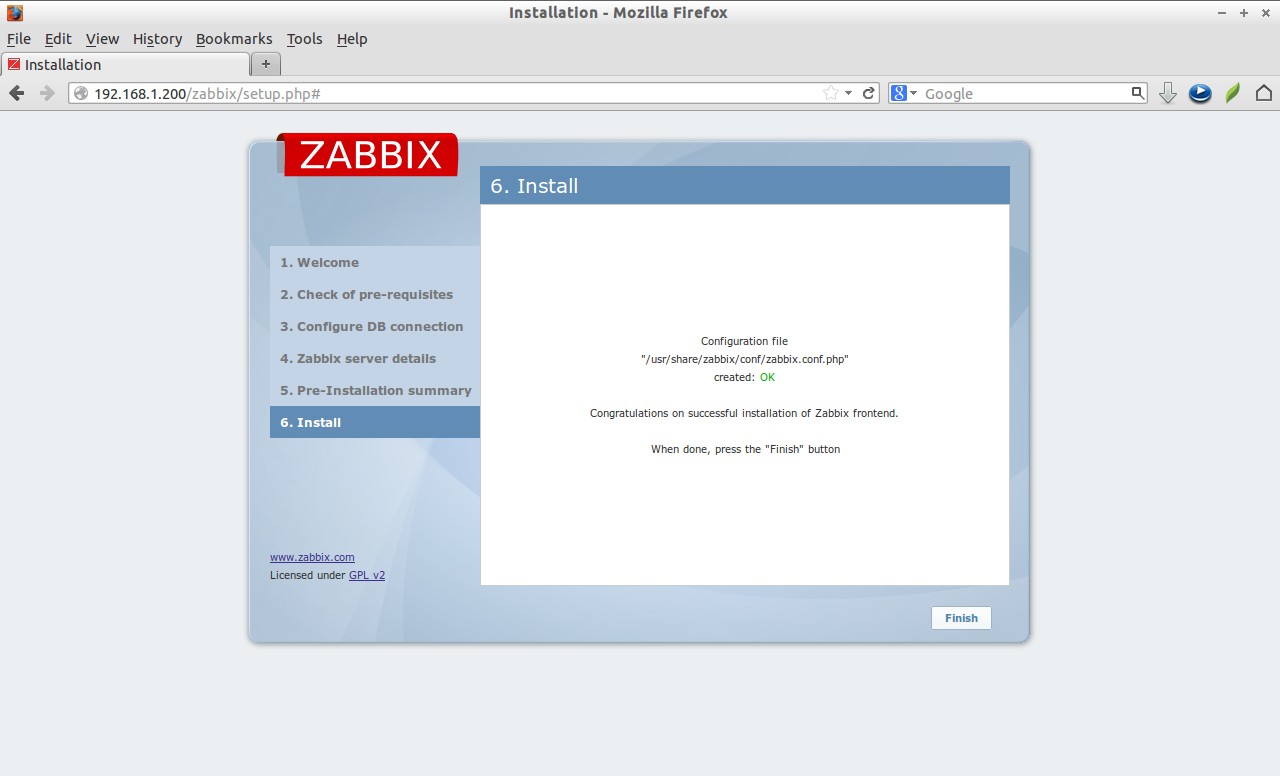
 Click Finish to complete the installation.
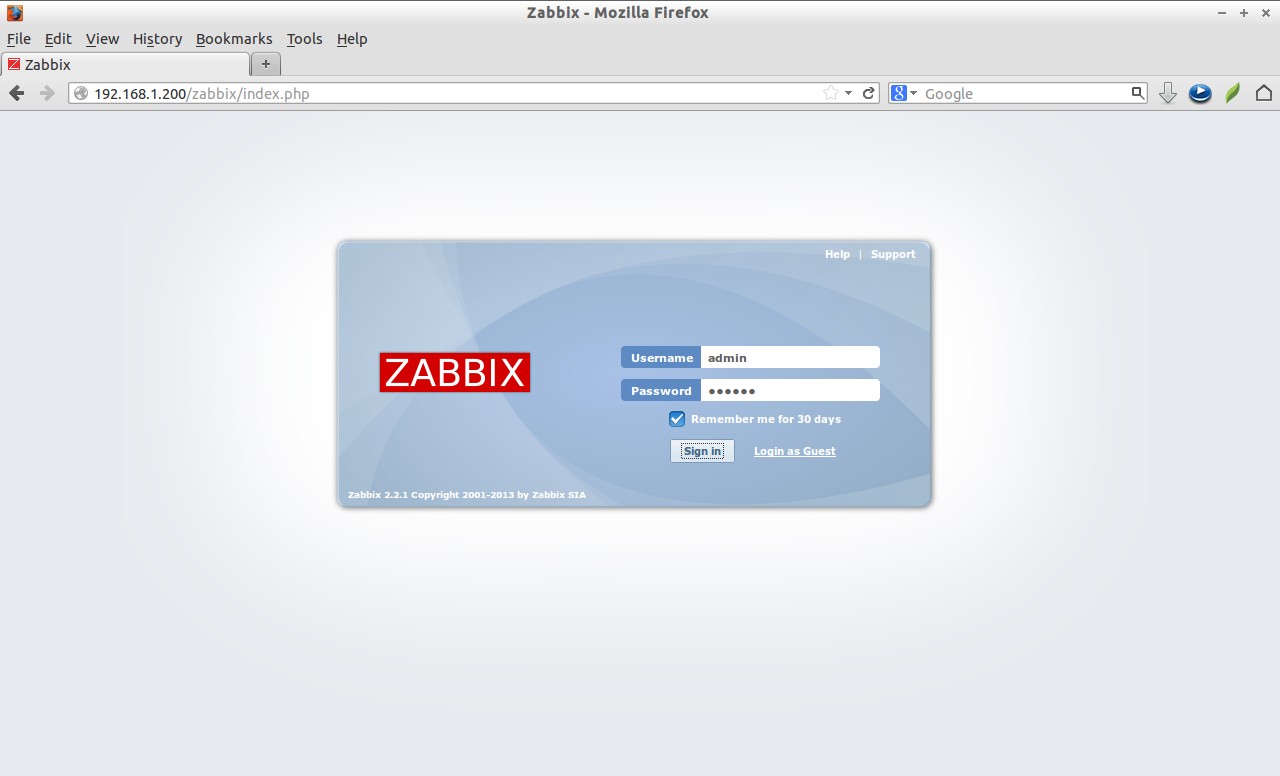
 Now you’ll be asked to enter the username and password. The default username/password is admin/zabbix.
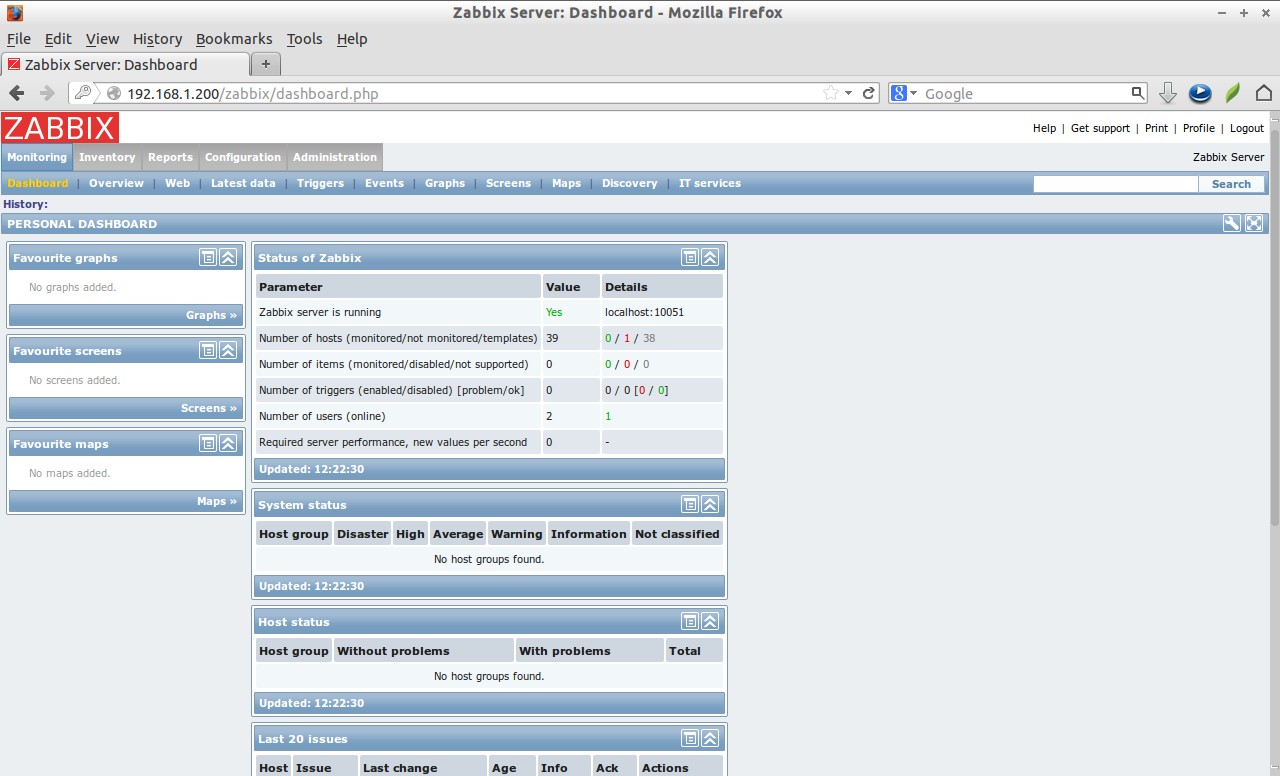
 Congratulations! You’ve completed the zabbix server and front-end installation successfully. This is how my zabbix server Dashboard looks at first log in.
 Install zabbix-agent On zabbix server
zabbix agent is used to send the reports to the server. Let us install this package on our server with following command:
# apt-get install zabbix-agent
At the server side you don’t have to configure agent, default values will work just fine.
Now go to the Dashboard and navigate to Configuration tab on the tab menu bar. Click on the Hosts tab. You’ll see that the zabbix server is present there.
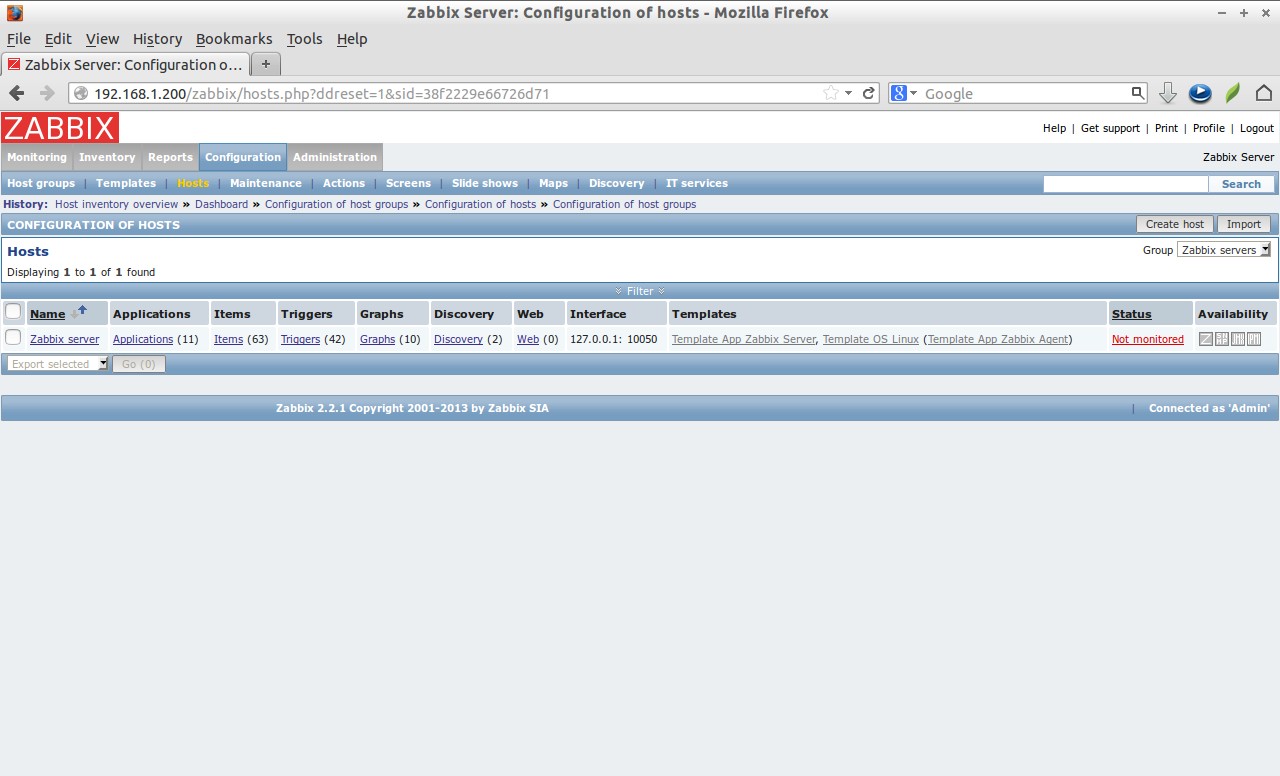 Initially, the zabbix server doesn’t monitor itself, you have to enable it.
Click on the name of the server and set host name and change value of Status to “Monitored” at the bottom. Then click Save.
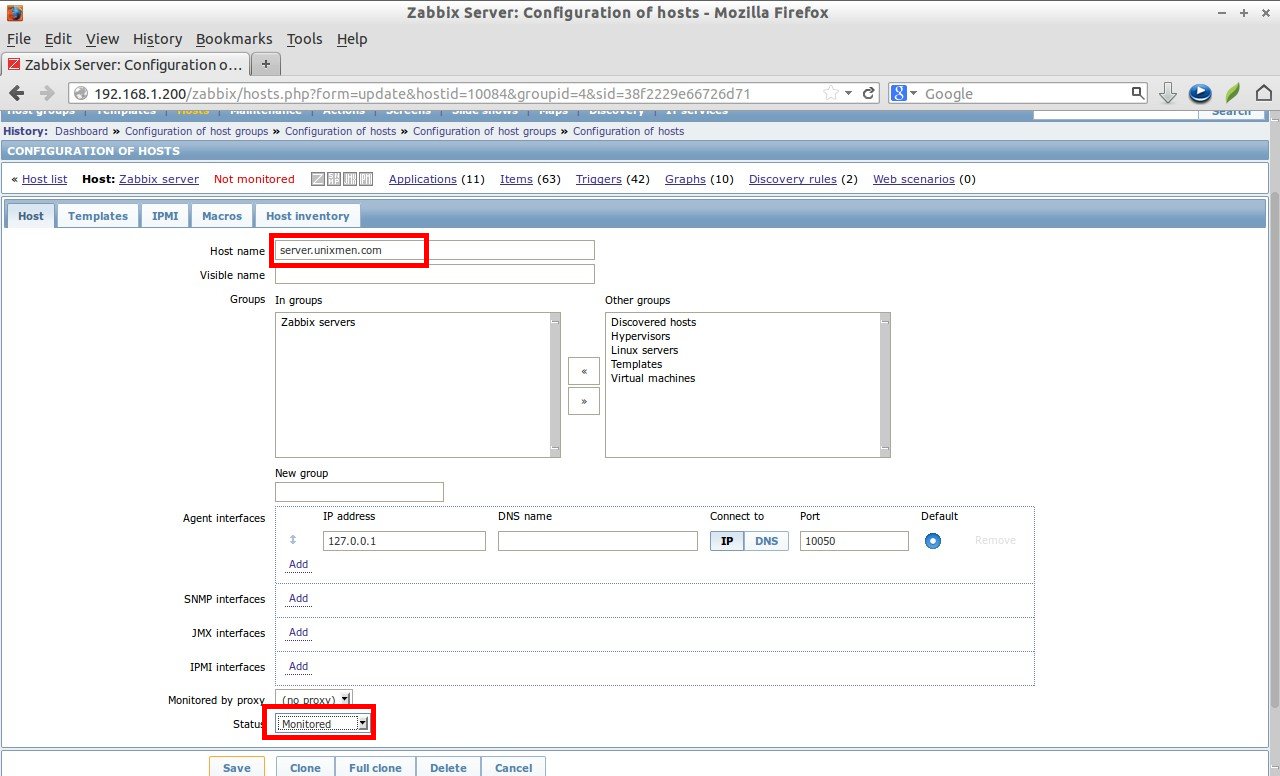 Wait for few minutes and you’ll see the zabbix server status is changed to be Monitored.
Check Zabbix server Statistics
Now click on the Monitoring tab on the top menu bar and select “Latest data”. You’ll see the zabbix server details:
![Zabbix Server: Latest data [refreshed every 30 sec] - Mozilla Firefox_018](http://unixmen.com/wp-content/uploads/2014/01/Zabbix-Server-Latest-data-refreshed-every-30-sec-Mozilla-Firefox_018.jpg) Expand the sub-category (ex.CPU), you’ll see more detailed information.
Expand the sub-category (ex.CPU), you’ll see more detailed information.
![Zabbix Server: Latest data [refreshed every 30 sec] - Mozilla Firefox_020](http://unixmen.com/wp-content/uploads/2014/01/Zabbix-Server-Latest-data-refreshed-every-30-sec-Mozilla-Firefox_020.jpg) Graphs:
Graphs:
![Zabbix Server: History [refreshed every 30 sec] - Mozilla Firefox_021](http://unixmen.com/wp-content/uploads/2014/01/Zabbix-Server-History-refreshed-every-30-sec-Mozilla-Firefox_021.jpg) Client Side Configuration
Client Side Configuration
Install zabbix-agent package in your client system:
$ sudo apt-get install zabbix-agent
Next edit file /etc/zabbix/zabbix_agentd.conf,
$ sudo vi /etc/zabbix/zabbix_agentd.conf
Add the server ip address and client hostname.
[...]
Server=192.168.1.200
[...]
Hostname=sk
[...]
Where,
192.168.1.200 – Debian 7 Ip address(Zabbix server).
sk – Ubuntu 13,04 hostname(client hostname).
Now restart zabbix-agent service with command:
$ sudo service zabbix-agent restart
Add Monitoring host – Method 1
Next go to the zabbix server Dashboard. Go to Configuration -> Hosts and click on your zabbix server name. This time it will show a option called Clone on the bottom. Refer the following screenshot.
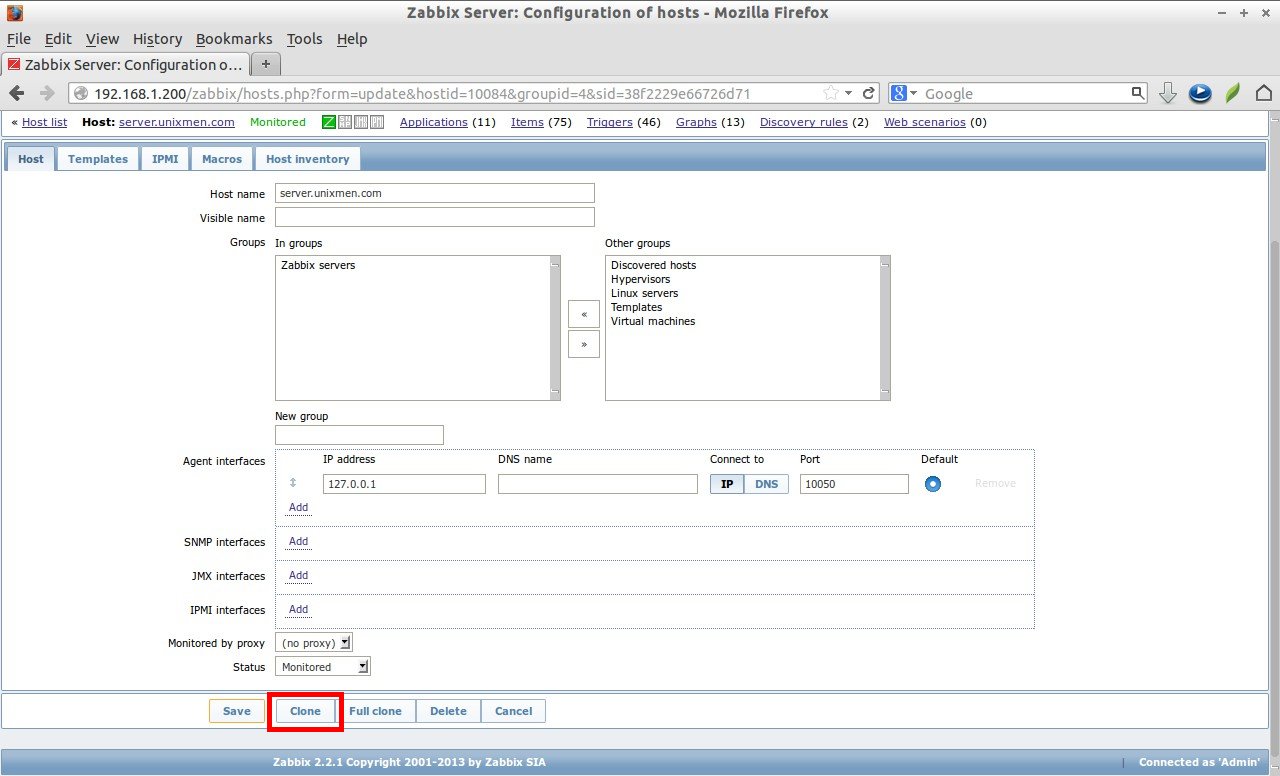 Enter the client hostname, change the group and ip address. Finally click Save.
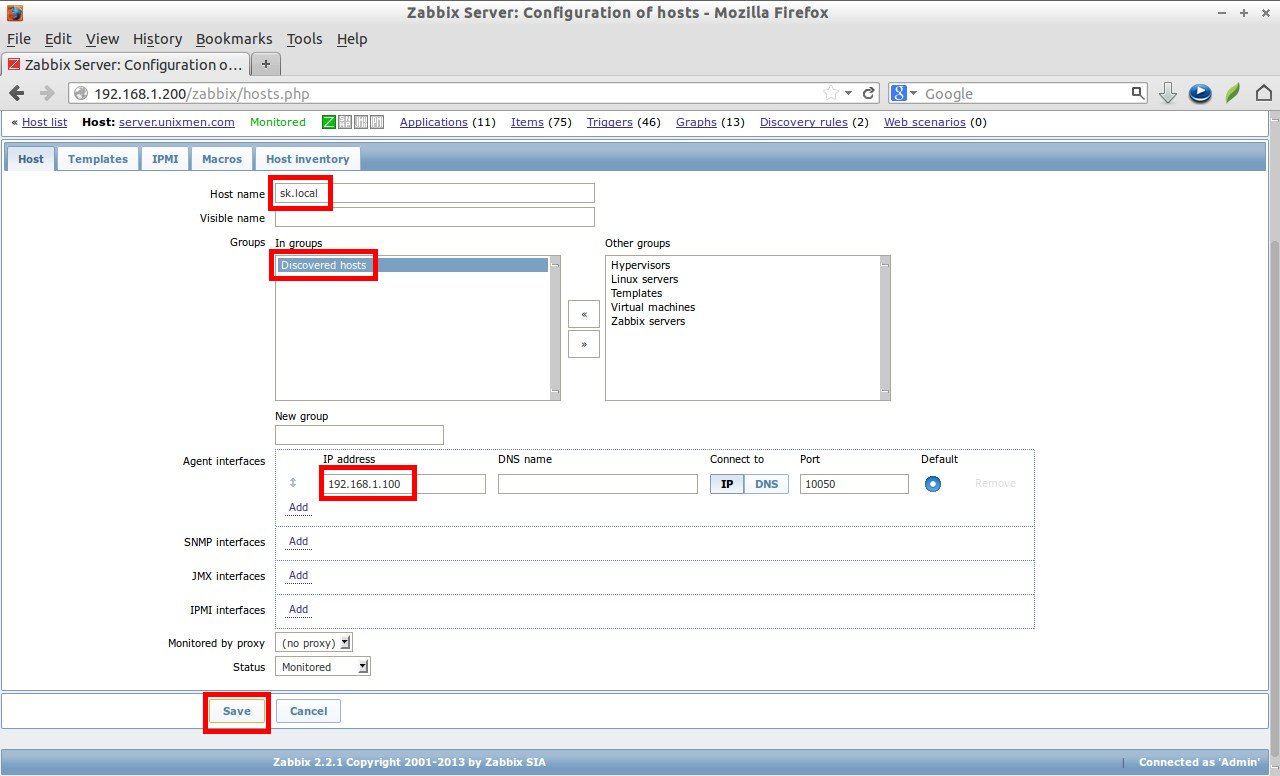 Now you’ll see that the client is added to monitoring list. After a few minutes, go to Monitoring -> latest data. You’ll see there both zabbix server and client statistics.
![Zabbix Server: Latest data [refreshed every 30 sec] - Mozilla Firefox_028](http://unixmen.com/wp-content/uploads/2014/01/Zabbix-Server-Latest-data-refreshed-every-30-sec-Mozilla-Firefox_028.jpg) Click on the (+) sign of the hosts if you want to see the additional details.
Click on the (+) sign of the hosts if you want to see the additional details.
![Zabbix Server: Latest data [refreshed every 30 sec] - Mozilla Firefox_029](http://unixmen.com/wp-content/uploads/2014/01/Zabbix-Server-Latest-data-refreshed-every-30-sec-Mozilla-Firefox_029.jpg) Click on the Graph link to view the graph statistics.
Click on the Graph link to view the graph statistics.
![Zabbix Server: History [refreshed every 30 sec] - Mozilla Firefox_030](http://unixmen.com/wp-content/uploads/2014/01/Zabbix-Server-History-refreshed-every-30-sec-Mozilla-Firefox_030.jpg) Add Monitoring Host – Method 2
Add Monitoring Host – Method 2
From the Dashboard, go to Configuration -> Hosts. Click on Create host on the right side.
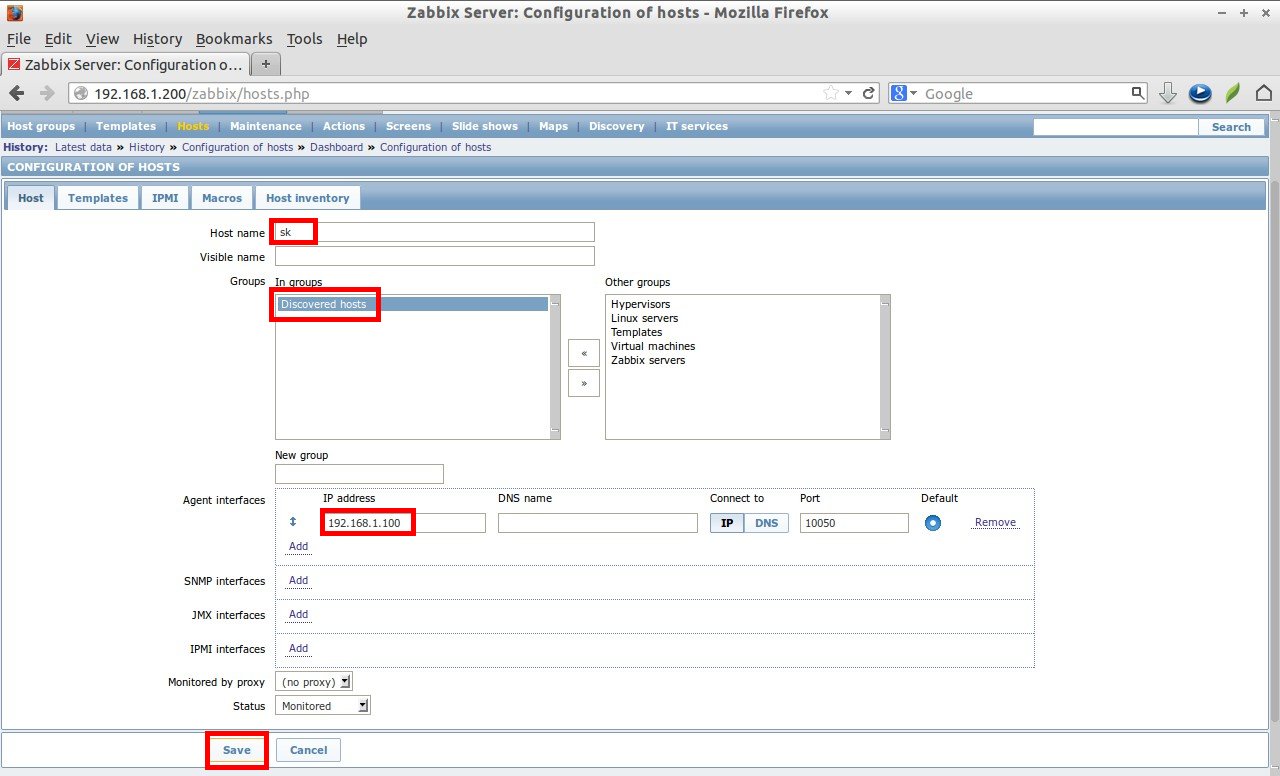
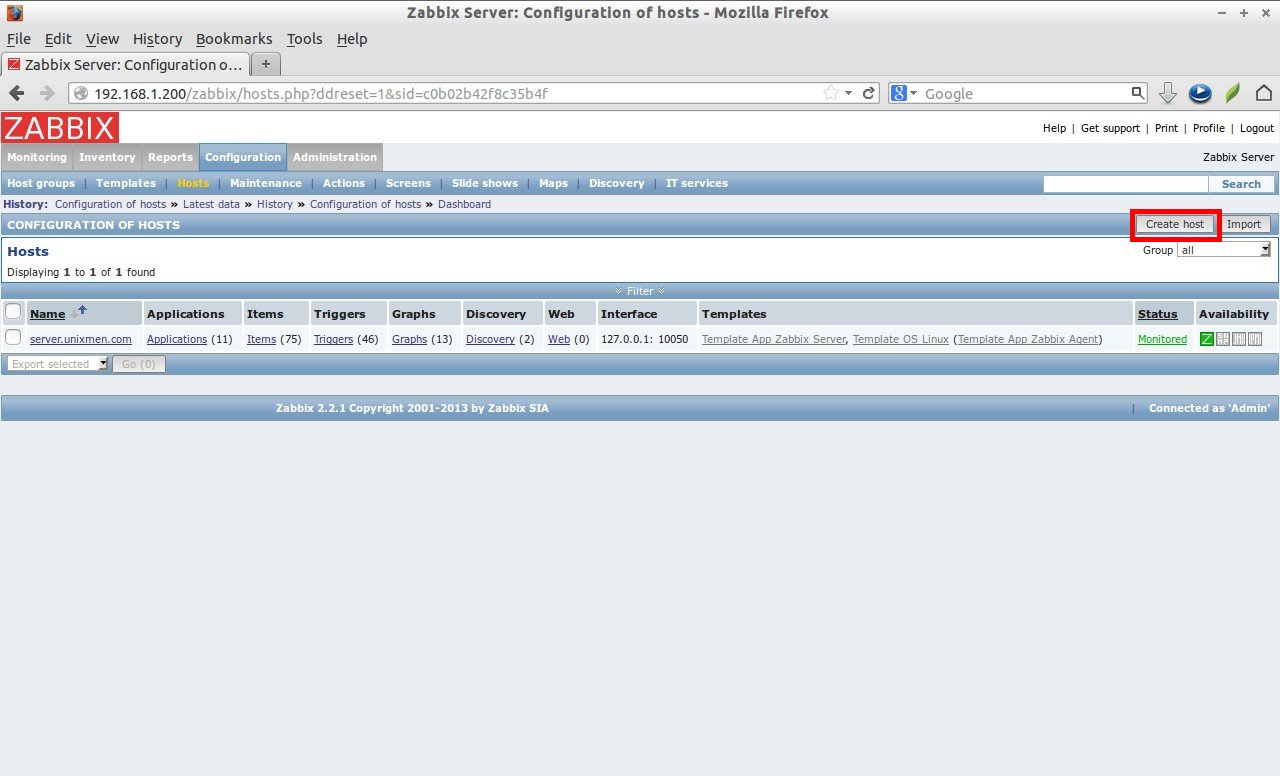 Enter hostname, select Groups and enter IP address as shown below.
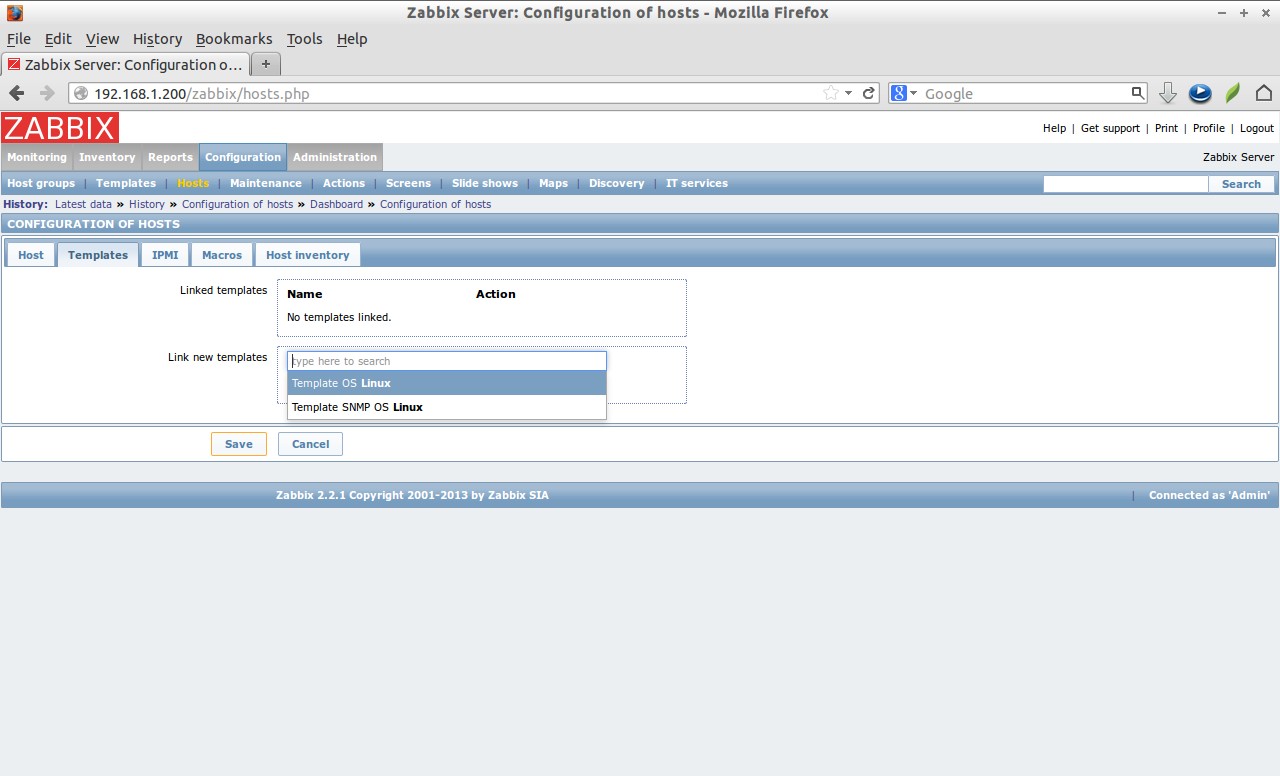
 Next go to Templates section and the template depending upon the type of your Host. Hence i have a Ubuntu desktop, i select Template OS Linux and click Add. Finally click Save.
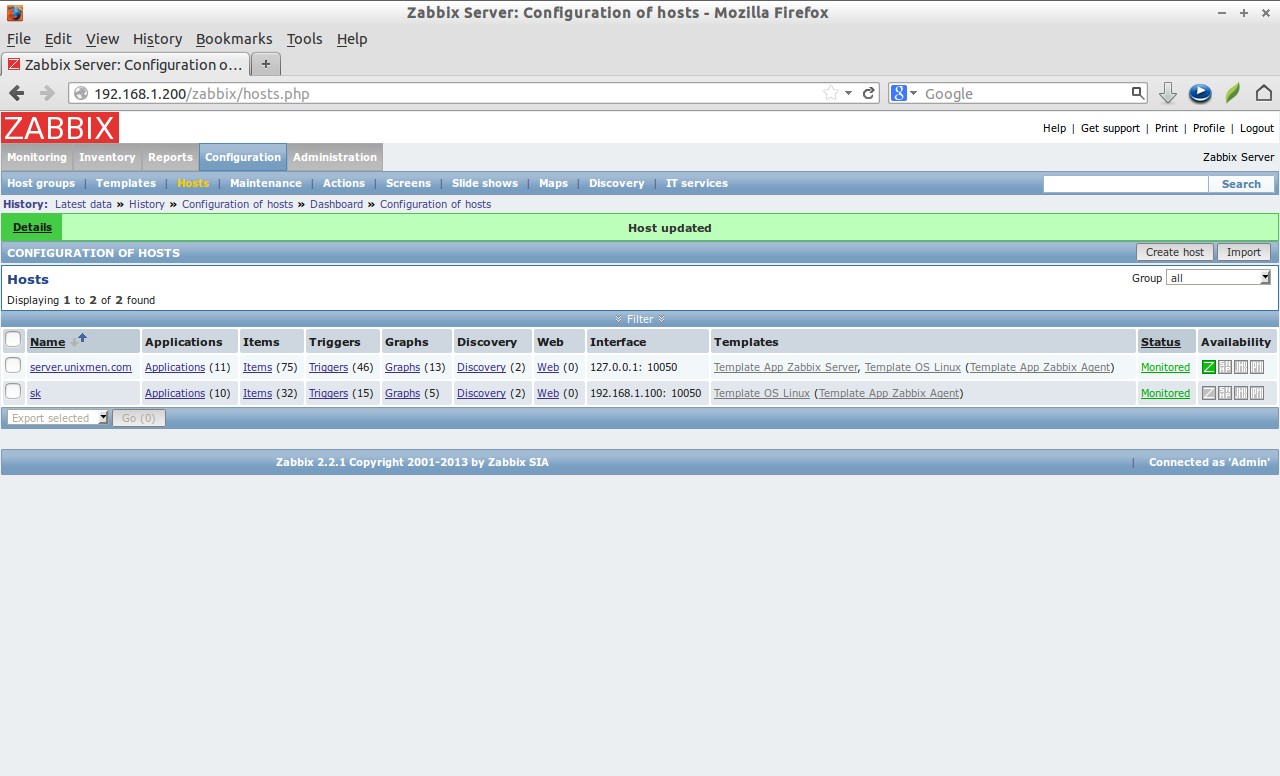
 Now the client will be added in the Hosts list.
 That’s it. I have covered only basic things. Explore all the options and tweak them as per your requirement to get better monitoring solution. Good luck!
Reference Links:



