


Firefox 16, a treat for developers http://t.co/cnd27CzT
Fedora 17 and 18 – Install Codecs, Drivers and Fonts in under 5 minutes!
Fedora 18 is a great GNU/Linux distribution, that initially needs some special configuration to fully cover the everyday needs of a desktop user with success. For legal and ideological reasons, people behind Fedora decide that their creation should not support the out of the box playback of mp3, movies etc. Moreover, Fedora doesn’t officially offer an easy to use tool for the user to download the needed packages like other distributions like Ubuntu and Linux Mint do. In this article we will see how to download and install all the “extras”, easily and fast.
Applications and Codecs
What you will need first of all, is to download an application called Autoplus. You won’t find it in the official repositories, but you can download and install Autoplus by using the following command:
su -c 'yum -y --nogpgcheck install http://dnmouse.org/autoplus-1.4-5.noarch.rpm'
This should install Autoplus in your system. If not, you can build it from source.
Now run Autoplus (Activities/Applications/System Tools) and you will see that everything you need is just two clicks away!
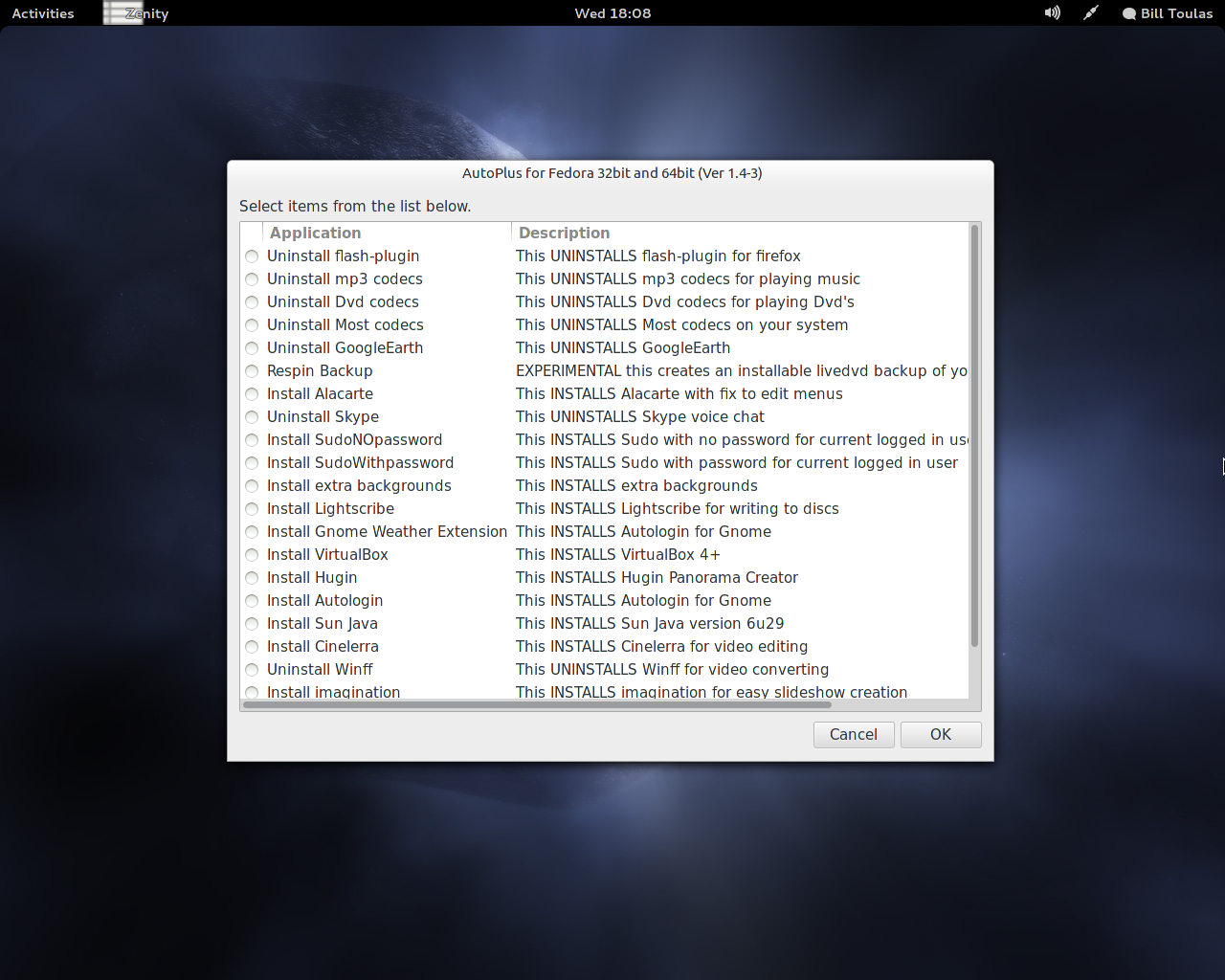
Autoplus offers to automatically download and install the codecs needed to playback multimedia files like mp3, plugins needed for optimum internet experience like Adobe Flash, applications that are not present on the default repos like Google Earth and even configure sudo usage for current user.
Graphics Driver
After you successfully installed everything using Autoplus, you can proceed with installing the proprietary closed source driver for your graphics card. Autoplus has already added rpm-fusion repositories in your system, so to install the graphics driver run Fedora’s “Add/Remove Software” and search for “nvidia” if you use an Nvidia card, or Catalyst if you’re using an AMD card. Choose the driver and press “apply”.
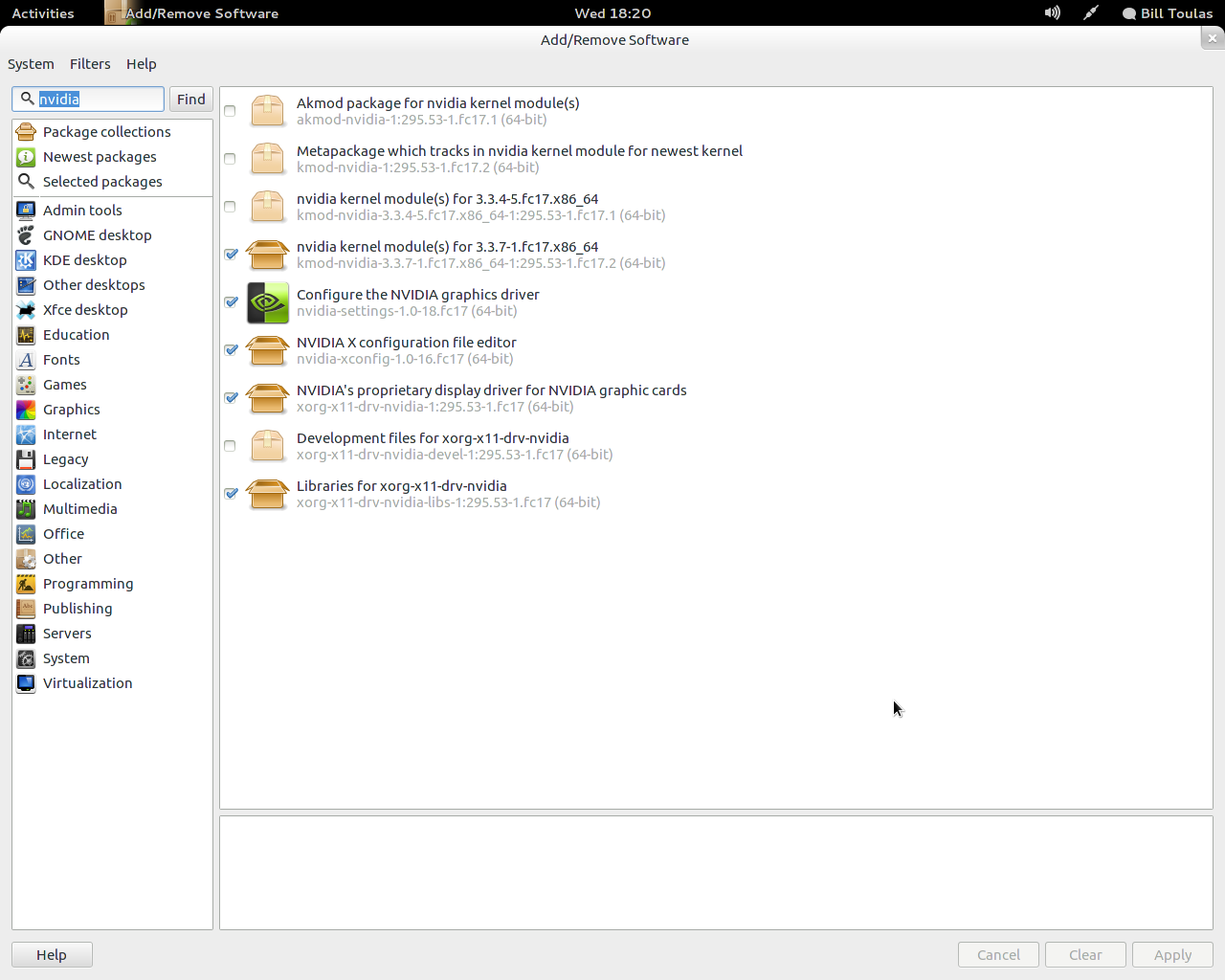
After the procedure finishes, you must open a terminal and run:
sudo nvidia-xconfig
Fonts
Now from the same application (Add/Remove Software) search and install “gnome-tweak-tool”. You will need this tool to configure the system font options. The default Cantarell font is very improved, but still not as good as the Ubuntu font. Download the Ubuntu font family, and extract the zip on a folder you will create under your home directory and name “.fonts”. Be aware that this folder will be hidden so make sure you will setup nautilus to show hidden files (view/show hidden files) before you create the folder.
Now open the “Advanced Settings” application (that is the gnome-tweak-tool), and choose Ubuntu fonts, slight Hinting and Rgba antialiasing
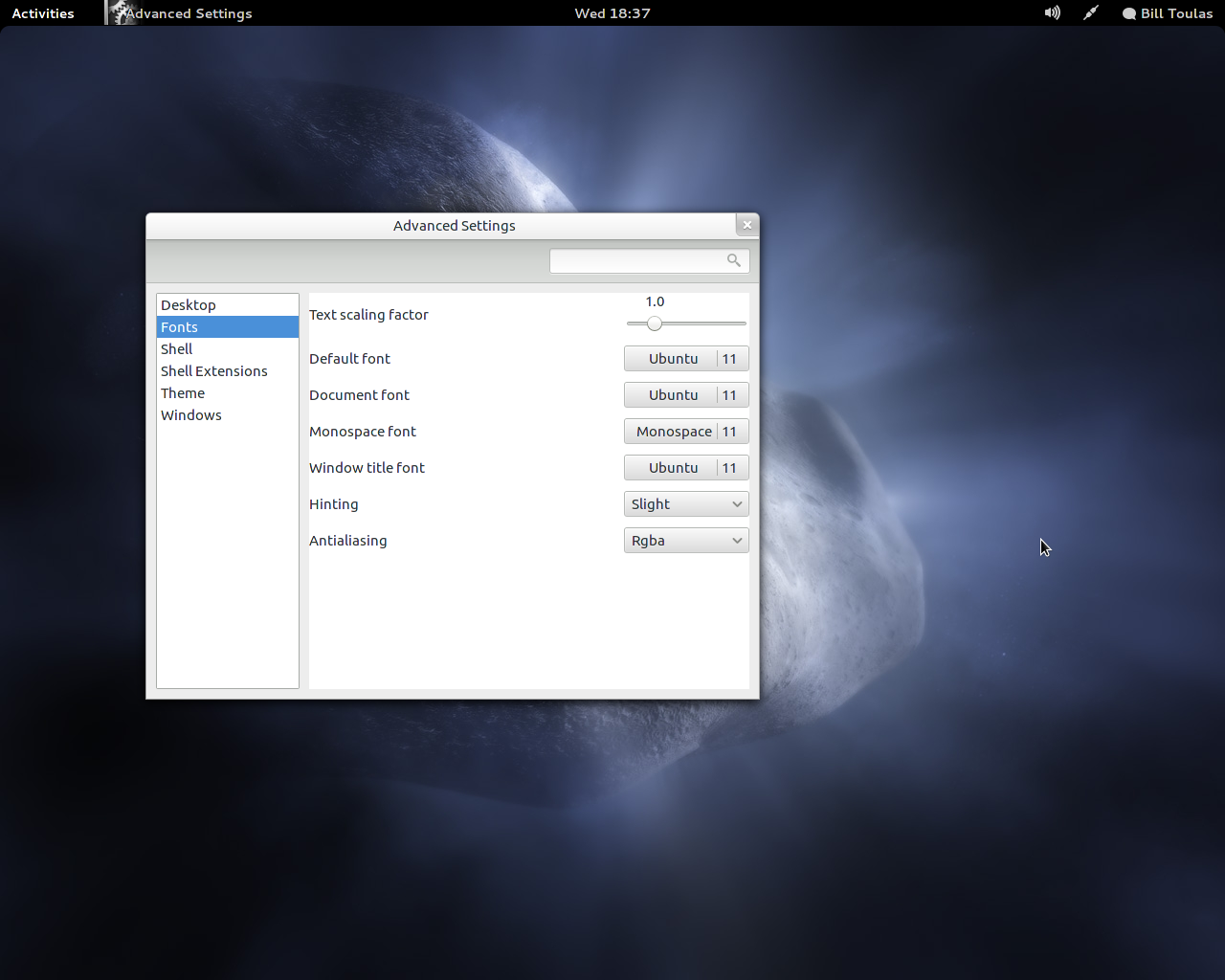
This should make your fonts look clearer and generally much better. Have a great time tweaking your new Fedora system!
PS: If you want to start theming your desktop after all this, I suggest you install the gnome user themes extension using yum and NOT the extensions website because in that case, a python bug renders the Advanced System Settings unable to start.

-
-
-
-
-
-
-
-
http://www.openplus.in/jokes.php
-
Pingback: In weniger als 5 Minuten: Codecs, Treiber und Fonts in Fedora 17 installieren | TechBloggers
-
http://funsurf-blog.blogspot.com/
-
http://www.com-sl.org
-
-
Pingback: Links 2/6/2012: SolusOS 1.1 Released, Fedora 17 Reviews | Techrights
-
Pingback: openSUSE: neues aus dem “SuS(i)E-Land” – die zwölf-A! | Lisufa' s Blog
-
http://www.linuxcloudvps.com/
-
Pingback: Fedora Utils – Install Codecs, Drivers and Fonts in Fedora 17 – Smashing Web
-
-
http://www.facebook.com/profile.php?id=503527330
-
http://www.facebook.com/profile.php?id=1251280252
-
-
-
-
Pingback: Change Chrome Font hinting in Gnome – Fedora,Ubuntu – Smashing Web
-
-
Pingback: Overscale Nvidia X Server Settings - Linux: Linux-Forum
-
-
-
Pingback: Como Instalar os Drivers no Fedora | Melhor do Linux
-
http://oscarpenn.blogspot.com/
-
-
-
-
Pingback: plug ins?
-
-
-
-
http://www.facebook.com/joshigs
-
Like us on Facebook
This week Top Posts 
Top Things to do After Installing Ubuntu 13.04 ‘Raring Ringtail’ : Ubuntu 13.04 Raring Ringtail final is almost out. The final release it scheduled for release on Apri...0 comment(s) |
Install lamp with 1 command in Ubuntu 12.10, 13.04 Raring Ringtail & LinuxMint13 : Updated: 10/09/2012 :LAMP (Linux, Apache, MySQL and PHP) is an open source Web development platform ...0 comment(s) |
Howto: Upgrade to Ubuntu 13.04 Raring Ringtail from 12.04, 12,10 | Desktop & Server : Updated 05-04-2013: Ubuntu 13.04 Raring Ringtail will be released Soon, If you have ubuntu 12,10, 12...0 comment(s) |
Install and Configure Samba share in Ubuntu 13.04 Raring Ringtail , 12.10, 12.04| Howto : Updated 05-04-2013: One of the most asked features for Samba is a graphical user interface to help w...0 comment(s) |
How to use Remote Desktop in Ubuntu : Sometimes, we need to access our computer from other locations when we’re not at home and such. This...0 comment(s) |
How to Find Default Gateway in Linux : A gateway is a node or a router that acts as an access point to passes network data from local netwo...0 comment(s) |
Recent Posts
- Setup the Raspberry Pi as a NAS
- How to Monitor Filesystem Events with incron
- Useful Commands for Linux Users – Episode 6
- Deadly Linux Commands
- Determine Your Specifications from Command-Line
- Automatically Change the Desktop Wallpaper Using Variety on Ubuntu/Linux Mint
- How to Find Default Gateway in Linux
- Setup Backup Server Using rsnapshot
- How to Disable/Change Default PDF Viewer in Mozilla Firefox
- Dictionaries in Python
Recent Comments


SK
| #
Did you add the IP range(Not ip address) in your cacti.conf file? If yes, check your apache log files. You may find the errors. Good luck.
David
| #
Hi SK,
thanks for your post :)
I did all the steps one by one but I got error 500, also I disable the selinux,and iptabels
In addition I cannot success to get the cacti in localhost.
Any idea?
Thanks
Richard
| #
I have been searching for a solution to that problem too but with videos. I can’t see anyway to make VLC do this. And nobody can tell me how.
However, I did find a media player called Movist that does it. I will never understand why VLC, the best in my opinion, does not design this feature into their player.
cave
| #
it can be used to talk or chat through the internet,
it is using strong encryption.
but for example TOR is using some obfuscation because some countrys try to block all outgoing connections which can not be scanned with DPI
And the TOR Project is facing an arms race in obfuscation and encryption detection.
cave
| #
You can friend someone if you give him your public Certificate.
both peers must friend each other.
i suggest to not enter a valid e-mail address. it is not necessary, but pgp needs a mail addy. something@something.so fits perfectly… :)
http://redd.it/18vsq5 <– faq, featurelist, todo, howto, useful links to manual wiki etc, …
you can connect to chatservers, which will give you access to chatlobby, where always some people are lurking.
#1 https://www.f2f-fr.net/w2c/en/
#2 http://retrosharechatserver.no-ip.org/w2c/en/
and in this rooms, you can find other people to talk and friend.