

A number of articles can be found over the internet that talk about Android apps, their reviews and various tips /tricks. However, there is a dearth of text that discusses Android OS based phones’ basic functionality. So here I am with some info meant for users who have recently switched from a normal phone to a cool Android one. In this text, I will discuss features which will help beginners to become familiar with their android handsets and to get hold of it.
Link between Google and Android
Android, as you might be familiar, was developed by Google and thus the close linkage of Android OS with your account in Google. When the Android phone is first switched on, you can enter your Google account username and password in order to link your phone with Gmail, your contacts and Google calendar.
Buttons
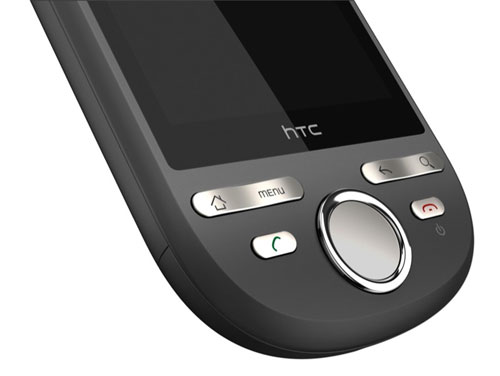
Home, Menu, Search and Back are the four buttons normally found in Android phones. Just like you have a Back button in your browser, similar is the functionality of the one in your handset i.e. to move to previous page. The Home button takes you to the main screen. The next is the dynamic Menu button. The options appearing on pressing Menu button change according to the page you are on. If an application is open, pressing the Menu button will show options related to that app. Lastly, the Search button, as the name suggests, lets you search just about anything in your phone such as stored files, apps and web.
Screens, Applications and Widgets
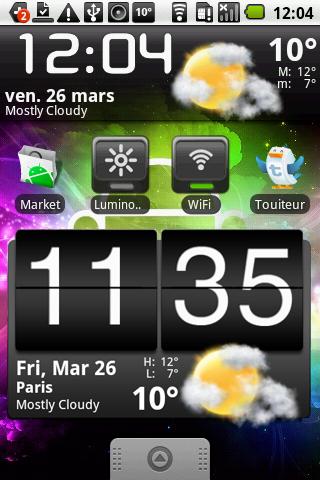 Just like a desktop is to a computer, similarly, the main screen is to an Android phone where all the application icons or shortcuts are placed. An interesting feature of Android phones is that they usually come with three to seven screens and you can scroll through them by sliding your fingers left or towards right of the screen.
On the main screen, you can see clock, weather, Facebook feeds, etc. being displayed dynamically. Those are interactive applications called widgets which are well liked by Android users.
Adding application and widgets on the main screen is quite easy. All you have to do it keep your finger on the screen on a vacant space, and a popup box opens up in which you need to select whatever you want to add.
Installing and uninstalling third-party applications
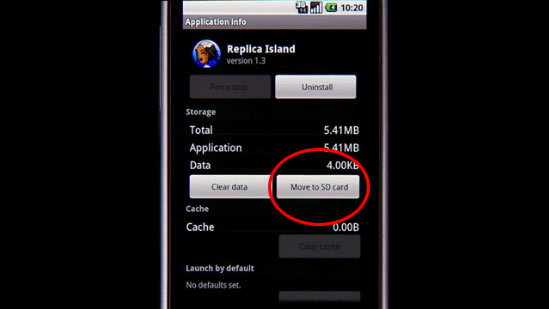
Your phone must be connected to the internet if you are interested in downloading free or paid apps. Apps fall under different categories such as games, chatting or communication, utility, etc. In case you want to buy applications, setting up of Google Checkout Account is required. In your Android phone, open the Market App and browse through the applications of your interest. In order to install the application, simply press the Install button on the screen. Uninstalling apps is a cake walk too. All you need to do is to press Menu button on the main screen then press Settings. Under Settings, press Applications and select Manage Application option. Now, press the Delete button and then press Uninstall on the prompt box that appears on screen.
Settings
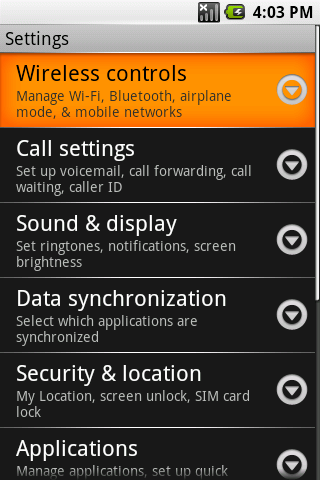
To change phone settings, you need to press the Menu button and then select “Setting” to open your Android phone’s settings page. You can configure different kinds of settings here such as sound settings, configuration of apps, turning on wireless network, display and security settings. You must go through the Settings page carefully in order to get to get hang of your Android phone.
{module user9-footer}