Firefox 16, a treat for developers http://t.co/cnd27CzT
Setup your personal Cloud server in minutes using ownCloud
ownCloud is a free Open Source software, used to setup your own personal cloud for file sharing, Calender, Contact and Bookmark sharing and Personal Audio/Video Streaming. It is pretty easy to setup and manage.
Prerequisites:
Make sure that your DNS server has properly installed and configured with your OwnCloud server IP and Hostname. For more information about configure DNS server follow this how-to tutorial.
In this tutorial i am using CentOS 6.3 minimal server to setup ownCloud.
Install the necessary packages for owncloud
[root@cloud ~]# yum -y install mysql-server httpd php php-mysql wget php-json php-xml php-mbstring php-zip php-gd curl php-curl php-pdo
Start mysql and httpd services and let them to start automatically on every reboot.
[root@cloud ~]# /etc/init.d/mysqld start [root@cloud ~]# /etc/init.d/httpd start [root@cloud ~]# chkconfig mysqld on [root@cloud ~]# chkconfig httpd on
Adjust iptables to access owncloud server from outside of the network.
Add the following lines to the iptables config file and restart iptables.
[root@cloud ~]# vi /etc/sysconfig/iptables -A INPUT -p tcp -m state --state NEW --dport 80 -j ACCEPT -A INPUT -p tcp -m state --state NEW --dport 80 -j ACCEPT [root@cloud ~]# service iptables restart
Now install and create mysql user and database for owncloud.
Note: In this tutorial i use password as “centos” for mysql database, owncloud admin account.
[root@cloud ~]# /usr/bin/mysql_secure_installation NOTE: RUNNING ALL PARTS OF THIS SCRIPT IS RECOMMENDED FOR ALL MySQL SERVERS IN PRODUCTION USE! PLEASE READ EACH STEP CAREFULLY! In order to log into MySQL to secure it, we'll need the current password for the root user. If you've just installed MySQL, and you haven't set the root password yet, the password will be blank, so you should just press enter here. Enter current password for root (enter for none): OK, successfully used password, moving on... Setting the root password ensures that nobody can log into the MySQL root user without the proper authorisation. Set root password? [Y/n] y New password: Re-enter new password: Password updated successfully! Reloading privilege tables.. ... Success! By default, a MySQL installation has an anonymous user, allowing anyone to log into MySQL without having to have a user account created for them. This is intended only for testing, and to make the installation go a bit smoother. You should remove them before moving into a production environment. Remove anonymous users? [Y/n] y ... Success! Normally, root should only be allowed to connect from 'localhost'. This ensures that someone cannot guess at the root password from the network. Disallow root login remotely? [Y/n] y ... Success! By default, MySQL comes with a database named 'test' that anyone can access. This is also intended only for testing, and should be removed before moving into a production environment. Remove test database and access to it? [Y/n] y - Dropping test database... ... Success! - Removing privileges on test database... ... Success! Reloading the privilege tables will ensure that all changes made so far will take effect immediately. Reload privilege tables now? [Y/n] y ... Success! Cleaning up... All done! If you've completed all of the above steps, your MySQL installation should now be secure. Thanks for using MySQL!
[root@cloud ~]# mysql -u root -p Enter password: Welcome to the MySQL monitor. Commands end with ; or \g. Your MySQL connection id is 12 Server version: 5.1.67 Source distribution Copyright (c) 2000, 2012, Oracle and/or its affiliates. All rights reserved. Oracle is a registered trademark of Oracle Corporation and/or its affiliates. Other names may be trademarks of their respective owners. Type 'help;' or '\h' for help. Type '\c' to clear the current input statement. mysql> CREATE DATABASE owncloud; Query OK, 1 row affected (0.01 sec) mysql> GRANT ALL ON owncloud.* TO 'owncloud'@'localhost' IDENTIFIED BY 'centos'; Query OK, 0 rows affected (0.01 sec) mysql> GRANT ALL ON owncloud.* TO 'owncloud'@'localhost.localdomain' IDENTIFIED BY 'centos'; Query OK, 0 rows affected (0.00 sec) mysql> exit Bye
Getting ownCloud
Goto to Apache root document folder and download the latest version of owncloud.
[root@cloud ~]# cd /var/www/html/ [root@cloud html]# wget http://owncloud.org/releases/owncloud-4.5.7.tar.bz2 --2013-03-11 13:50:50-- http://owncloud.org/releases/owncloud-4.5.7.tar.bz2 Resolving owncloud.org... 50.30.32.90 Connecting to owncloud.org|50.30.32.90|:80... connected. HTTP request sent, awaiting response... 200 OK Length: 9126728 (8.7M) [application/x-bzip] Saving to: “owncloud-4.5.7.tar.bz2” 100%[======================================>] 9,126,728 46.4K/s in 1m 52s 2013-03-11 13:52:46 (79.3 KB/s) - “owncloud-4.5.7.tar.bz2” saved [9126728/9126728] [root@cloud html]# tar xvf owncloud-4.5.7.tar.bz2 [root@cloud html]# rm owncloud-4.5.7.tar.bz2 [root@cloud html]# chown -R apache:apache owncloud [root@cloud html]# chmod 750 owncloud/data/ [root@cloud html]# chmod 777 owncloud/config/
Find and edit the lines as shown below in “/etc/httpd/conf/httpd.conf” file.
[root@cloud html]# vi /etc/httpd/conf/httpd.conf
<Directory "/var/www/html">
Options Indexes FollowSymLinks
AllowOverride All
Order allow,deny
Allow from all
</Directory>
Restart the httpd and mysqld services.
[root@cloud html]# /etc/init.d/mysqld restart [root@cloud html]# /etc/init.d/httpd restart
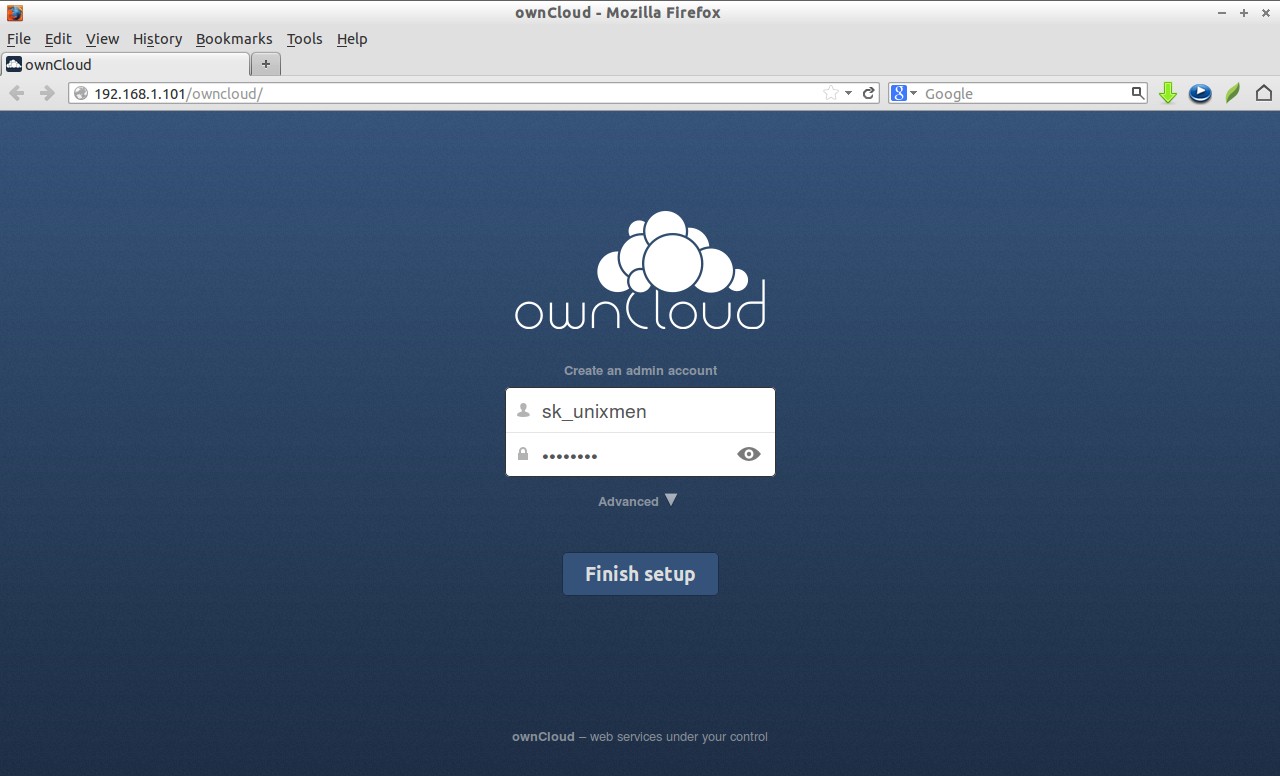
Now goto any client system if your owncloud server doesn’t has GUI mode and access it by “http://ip-address or domain name/owncloud. The index page of own cloud will open now. Create the administrator username and password for your cloud server.
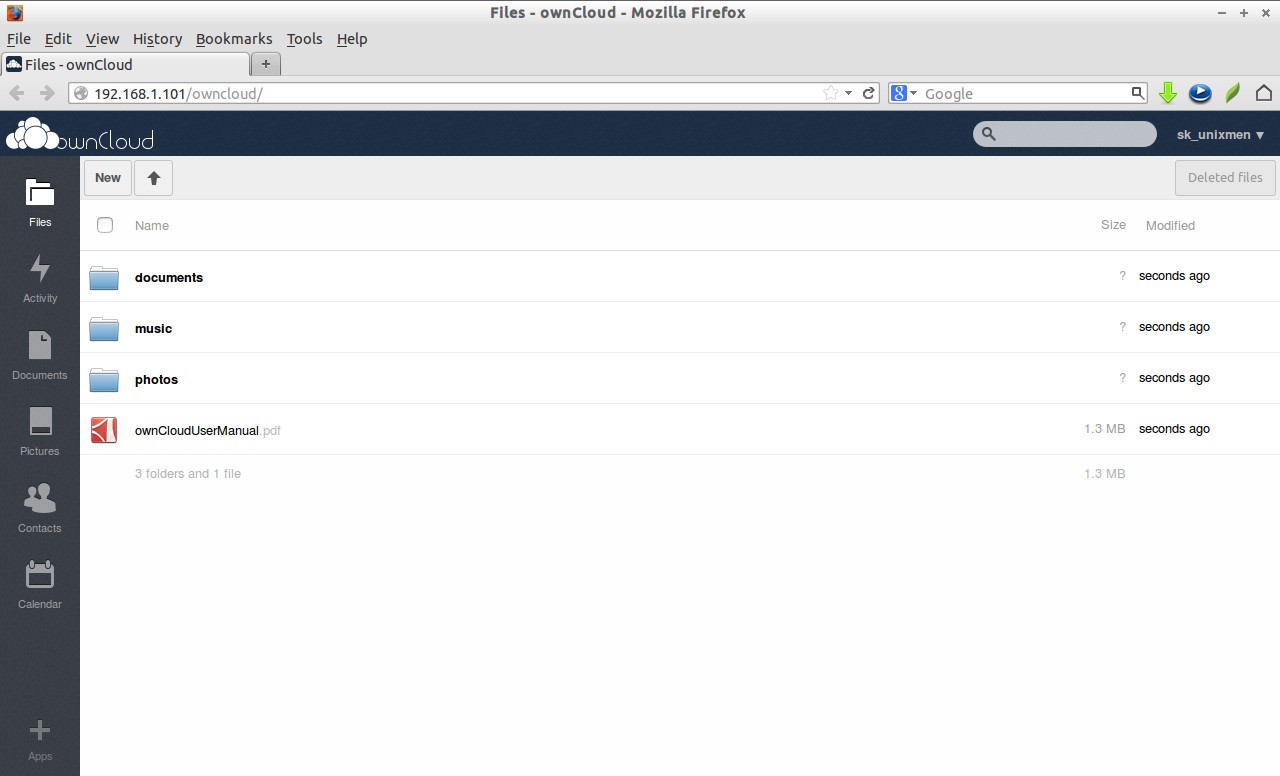
Thats it. You can upload/download your images, files and Audio/Video here and you can access them from your clients over LAN/WAN.
-
-
http://www.facebook.com/profile.php?id=100000347815772
-
-
http://www.facebook.com/profile.php?id=689444745
-
Pingback: Setup your personal Cloud server in minutes using ownCloud | Linux A.I
-
http://www.facebook.com/profile.php?id=100000347815772
-
http://www.facebook.com/profile.php?id=689444745
-
-
http://www.facebook.com/profile.php?id=689444745
-
-
-
http://www.facebook.com/profile.php?id=100000347815772
-
-
http://www.facebook.com/profile.php?id=689444745
-
http://www.facebook.com/profile.php?id=100000347815772
-
http://www.facebook.com/profile.php?id=100000347815772
-
-
http://www.facebook.com/profile.php?id=689444745
-
-
http://www.facebook.com/profile.php?id=689444745
-
-
http://www.facebook.com/profile.php?id=689444745
-
-
-
-
-
-
Pingback: Setup your personal Cloud server in minutes using ownCloud | Thelinuxgeek
-
Pingback: Setting up your ownCloud | 0ddn1x: tricks with *nix
-
Like us on Facebook
This week Top Posts 
Top Things to do After Installing Ubuntu 13.04 ‘Raring Ringtail’ : Ubuntu 13.04 Raring Ringtail final is almost out. The final release it scheduled for release on Apri...0 comment(s) |
Install lamp with 1 command in Ubuntu 12.10, 13.04 Raring Ringtail & LinuxMint13 : Updated: 10/09/2012 :LAMP (Linux, Apache, MySQL and PHP) is an open source Web development platform ...0 comment(s) |
Howto: Upgrade to Ubuntu 13.04 Raring Ringtail from 12.04, 12,10 | Desktop & Server : Updated 05-04-2013: Ubuntu 13.04 Raring Ringtail will be released Soon, If you have ubuntu 12,10, 12...0 comment(s) |
Steganography- Hide Your Files Inside An Image in Linux : Nowadays, our personal computer is not only a work tool, it is also our private space where we sto...5 comment(s) |
How to use Remote Desktop in Ubuntu : Sometimes, we need to access our computer from other locations when we’re not at home and such. This...0 comment(s) |
Configure conky-Lua in Ubuntu (12.10 & 13.04 Raring Ringtail), Fedora, debian and LinuxMint | Howto Conky : Updated 05-04-2013: Conky is a free, light-weight system monitor for X, that displays any informatio...0 comment(s) |
Recent Posts
- Steganography- Hide Your Files Inside An Image in Linux
- Unix/Linux File Recognition. Did You Know?
- Migrate from MySQL to MariaDB in FreeBSD
- Connect Your Android Galaxy Tablet to Ubuntu via USB
- ElementaryOS Beta 1 and 2 Comparison and Review
- Introduction to the Linux Command Line
- A Secure Password
- Linux Kernel 3.10. It’s BIG!
- Monitoring Users Activity Using psacct or acct Tools in Linux
- Run Your Own Social Network Using elgg on RHEL / CentOS and Scientific Linux
Recent Comments


jacky can
| #
You can actually unzip your secret archive by leaving out the -t option, instead using:
unzip newPhoto.jpg
DragonFartOutLoud
| #
it went to china.
DragonFartOutLoud
| #
great review! i’ve been using it as my main OS since Beta 1 release. its been a awesome ride so far :)
jet li
| #
i try the method, and i unzip the image contain zip secret, i dont find the file that i was hide, where it go? and how to open it? :s
zinovsky
| #
Yes, it is possible using Steganography, we will post another quick howto do that in the next few days