
After upgrading to Ubuntu 14.04 LTS from Ubuntu 13.10, I could not move to different workspace using CTRL+ALT+(Left/Right/Top/Bottom) Arrow keys. The workspace feature is disabled by default. However, we can enable it easily.
To do that, Go to System Settings -> Appearance -> Behavior.

Also, You can launch System settings either from Dash or Click on the gear button on the upper right corner.
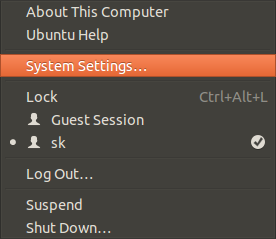
From the System Settings window, go to Appearance -> Behavior. You should see the following screen. Check the option Enable workspaces.
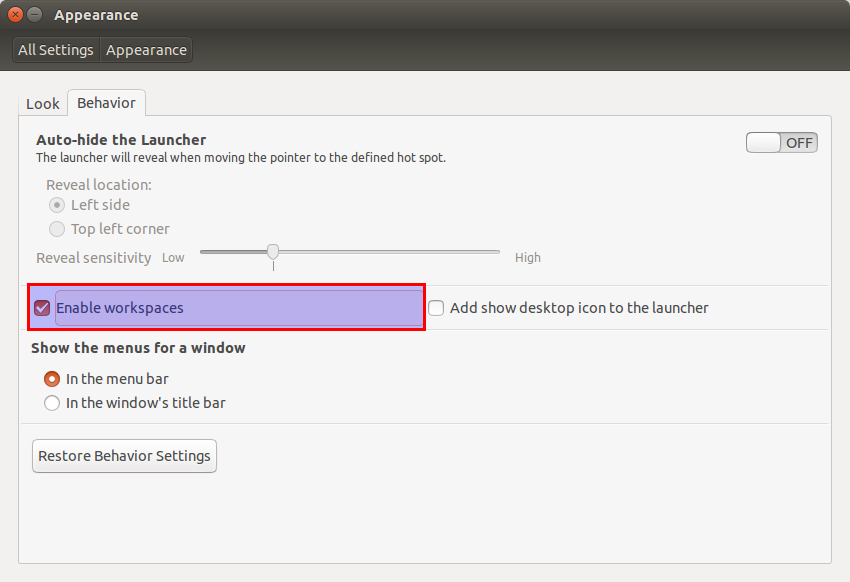
That’s it. Close the System Settings window. Now, you’ll be able to switch to different workspaces using key combinations CTRL+ALT+(Left/Right/Top/Bottom) Arrow keys.
Also, if you want to move opened windows or applications to different workspaces, use the key combination CTRL+SHIFT+ALT+(Left/Right/Top/Bottom) Arrow keys. Say for example, you have Firefox application running on the First (top-left) workspace, and you want to move it to the another workspace (top-right), then press the key combination CTRL+SHIFT+ALT+Right Arrow keys. That’s it. Now the Firefox window will be moved to right side workspace.
Hope it helps. Cheers!