
Securing the Apache server is one of the most important tasks of the webmaster. In this example, we will show you in this Apache HTTP Secure Server Configuration tutorial how to use ssl keys with your Apache web server on your installed Centos7 system. this method should also work onall Fedora or Redhat based systems
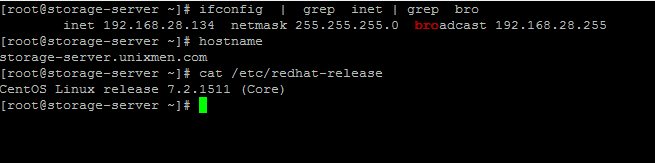
Lets Tell you about my machine :
Create Certificates
Change to the following directory:
# cd /etc/pki/tls/certs
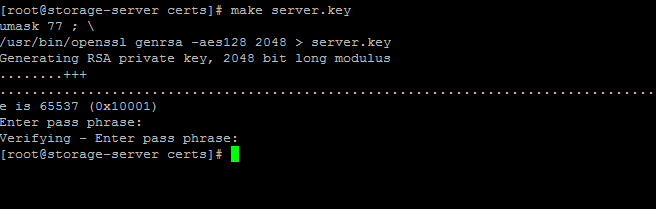
Run the following command to make server key file:
Remove passphrase from private key:
Writing RSA key
# openssl rsa -in server.key -out server.key
Enter pass phrase for server.key:
writing RSA key
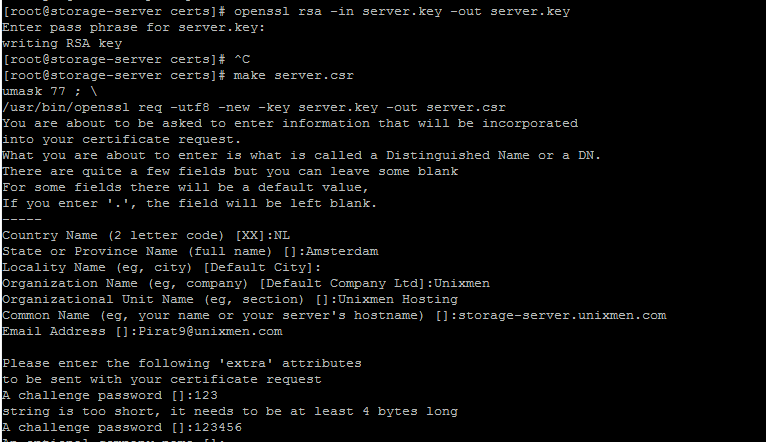
Generate CSR key file
Sign the key and make Expiration days:
# openssl x509 -in server.csr -out server.crt -req -signkey server.key -days 1000
Signature ok
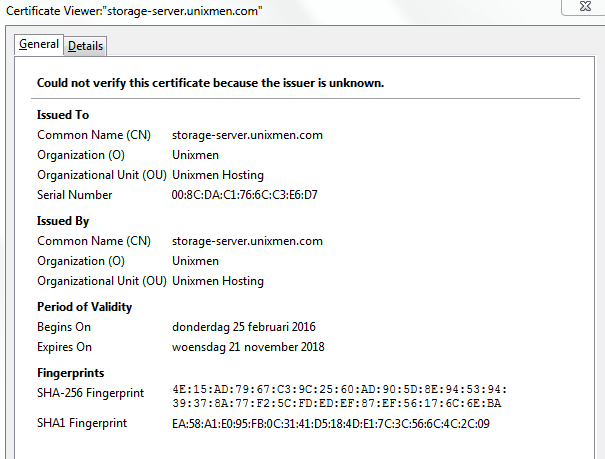
subject=/C=NL/ST=Amsterdam/L=Default City/O=Unixmen/OU=Unixmen Hosting/CN=storage-server.unixmen.com/emailAddress=Pirat9@unixmen.com
Getting Private key

Configure SSL keys with Apache
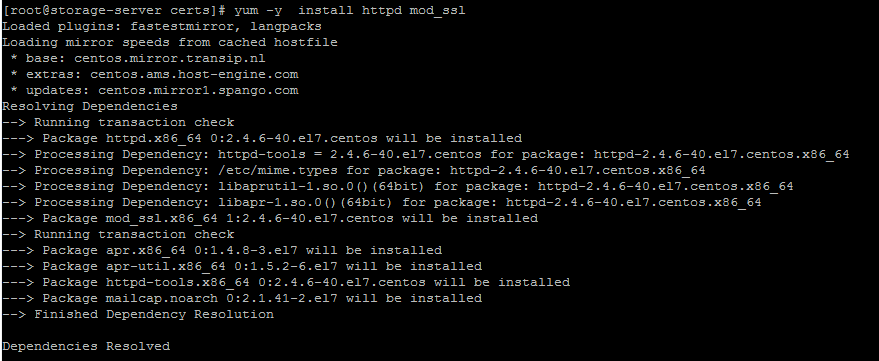
# yum -y install httpd mod_ssl
Enable en Start apache

Configure ‘/etc/httpd/conf.d/ssl.conf’
Your ssl.conf should be like this:
#mv /etc/httpd/conf.d/ssl.conf  /etc/httpd/conf.d/ssl.conf.orig
#vi /etc/httpd/conf.d/ssl.conf
LoadModule ssl_module modules/mod_ssl.so
Listen 443
SSLPassPhraseDialog builtin
SSLSessionCache shmcb:/var/cache/mod_ssl/scache(512000)
SSLSessionCacheTimeout 300
SSLRandomSeed startup file:/dev/urandom 256
SSLRandomSeed connect builtin
SSLCryptoDevice builtin
<VirtualHost *:443>
DocumentRoot "/var/www/html"
ServerName 127.0.0.1:443
ErrorLog logs/ssl_error_log
TransferLog logs/ssl_access_log
LogLevel warn
SSLEngine on
SSLProtocol all -SSLv2
SSLCipherSuite ALL:!ADH:!EXPORT:!SSLv2:RC4+RSA:+HIGH:+MEDIUM:+LOW
SSLCertificateFile /etc/pki/tls/certs/server.crt
SSLCertificateKeyFile /etc/pki/tls/certs/server.key
<Files ~ "\.(cgi|shtml|phtml|php3?)$">
 SSLOptions +StdEnvVars
</Files>
<Directory "/var/www/cgi-bin">
 SSLOptions +StdEnvVars
</Directory>
SetEnvIf User-Agent ".*MSIE.*" \
 nokeepalive ssl-unclean-shutdown \
 downgrade-1.0 force-response-1.0
CustomLog logs/ssl_request_log \
 "%t %h %{SSL_PROTOCOL}x %{SSL_CIPHER}x \"%r\" %b"
</VirtualHost>
Save and exit
Restart Apache
Check if the ports 80 and 443 are listening:

Allow the ports 80 and 443 via Iptables:
vi /etc/sysconfig/iptables
-A INPUT -p tcp -m state --state NEW -m tcp --dport 80 -j ACCEPT
-A INPUT -p tcp -m state --state NEW -m tcp --dport 443 -j ACCEPT
Reload  and  restart iptables
If you are using Firewalld please do :
firewall-cmd --permanent --add-port=80/tcp
firewall-cmd --permanent --add-port=443/tcp
And reload the firewalls :
service iptables restart
Or
firewall-cmd --reload
Restart ip tables:
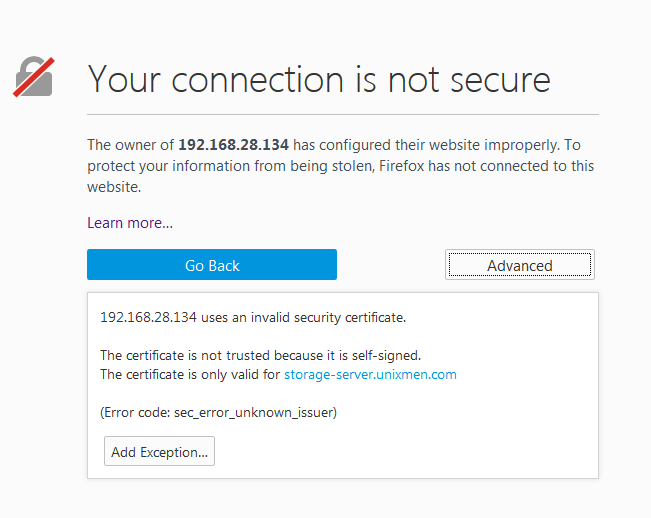
Open the browser and Check https://IP-Address.
Enjoy