

If you only have been using CentOS for a while, you might already be aware of how to upgrade to the latest release using the “yum update” command. However what you may be unaware of is that the “yum update” command can only be used for upgrading to the latest minor release. Generally this is because a major release will contain major security fixes, kernel updates and new applications.
Whether you are using CentOS as a personal desktop or as a server, if you want to upgrade to the latest major release in most cases you will need to download and install everything again from scratch. As a systems administrator this can be a time consuming and somewhat tedious task, so here are a few steps that you can take to simplify the process.
Useful commands
cat /etc/redhat-release – Show current version
uname –a – Show current version and kernel version
rpm –q kernel – Show kernel version
yum –y update – Update all your applications and CentOS to the latest minor release

Backing up your MySQL
The first thing you will need to do, particularly if you are running a web server is to backup MySQL. There are a few options you can take to backup MySQL, for example if you have phpMyAdmin installed, you can simply click export and select the type of file you want your tables exported to.
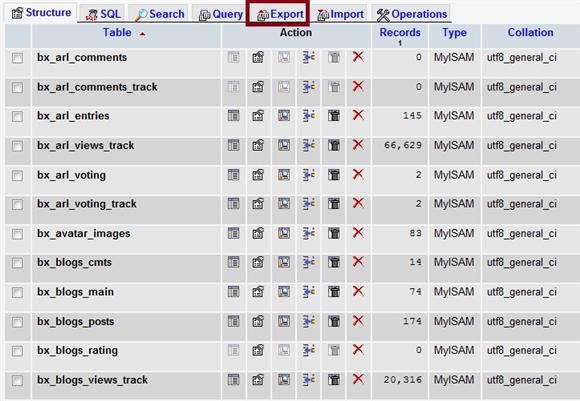
You can also use one of the tools that comes standard with MySQL, mysqldump. To export the contents of a MySQL database using mysqldump, enter the command below with your username and password, followed by the name of the database. In this example db_1 is the name of the database I am exporting.
mysqldump –u root –p password db_1 > db_1.sql
This will produce a .sql file containing all the table information. You can import the .sql file into your new version of CentOS using a similar command. Although be aware that you will need to configure the username and password before you import the database contents.
mysqldump –u root –p password db_1 < db_1.sql
If you are unaware of which databases your server has running, you can use the following query to find out.
mysql –u root -p
show databases;
List all applications installed
You can also use yum to generate a list of all the applications installed on CentOS 5.6 before migrating. I find this useful because you can use this list to re-install the applications on CentOS 6, although some of them may already be installed by default.
yum list | grep installed > installed.txt
Backup files and configurations
The simplest way to backup files and configurations for CentOS is simply just to compress certain directories into a tarball. There are several applications that you can use to backup Linux, some of which are available throughout this site, but in this instance I will be using tar as to make it simple and perverse file permissions.
Before you begin, it’s a good idea to figure out which directories you want to keep and which you don’t. It’s a good idea to create a backup of your /root /home /var and /etc directories, however I do not recommend backing up your binary directories, you should simply reinstall the applications and backup the config files.
The following command can be used to backup the directories which I have chosen, (Note: Make sure not to add the backup tarball to the directory which you will be backing up)
tar cvf /backup.tar /root /home /var /etc
If you don’t want to see the verbose output you can also use -cf and then verify the contents and permissions inside the tar file later by using the following command.
tar tvf backup.tar
You can extract the files onto the new version of CentOS 6 using the command
tar xf backup.tar
Retaining users and groups
Some files and folders you will be able to replace when installing CentOS 6, depending on the versions of certain applications you’re using. In most cases you will be able to replace alot of the files from the old system that you backed up; some should be used as a reference– though I will leave that up to your digression.
One such example of files that you can replace when migrating to the new version of CentOS is the users and groups files. Backing up these files allows you to transfer all of your old users and groups onto the new system with very little disruption, it is also important if you want to retain certain file permissions.
There are four main user and group files which you can backup and replace onto CentOS 6, all of which have been covered in the backup.
/etc/passwd – Contains user and home directory information
/etc/shadow – Contains the encrypted passwords for each user
/etc/group – Contains information about which each group users belong to
/etc/gshadow – Contains group password information
{module user9-footer}