
Firefox 16, a treat for developers http://t.co/cnd27CzT
Howto- Install Monitorix in Ubuntu, Fedora and Centos
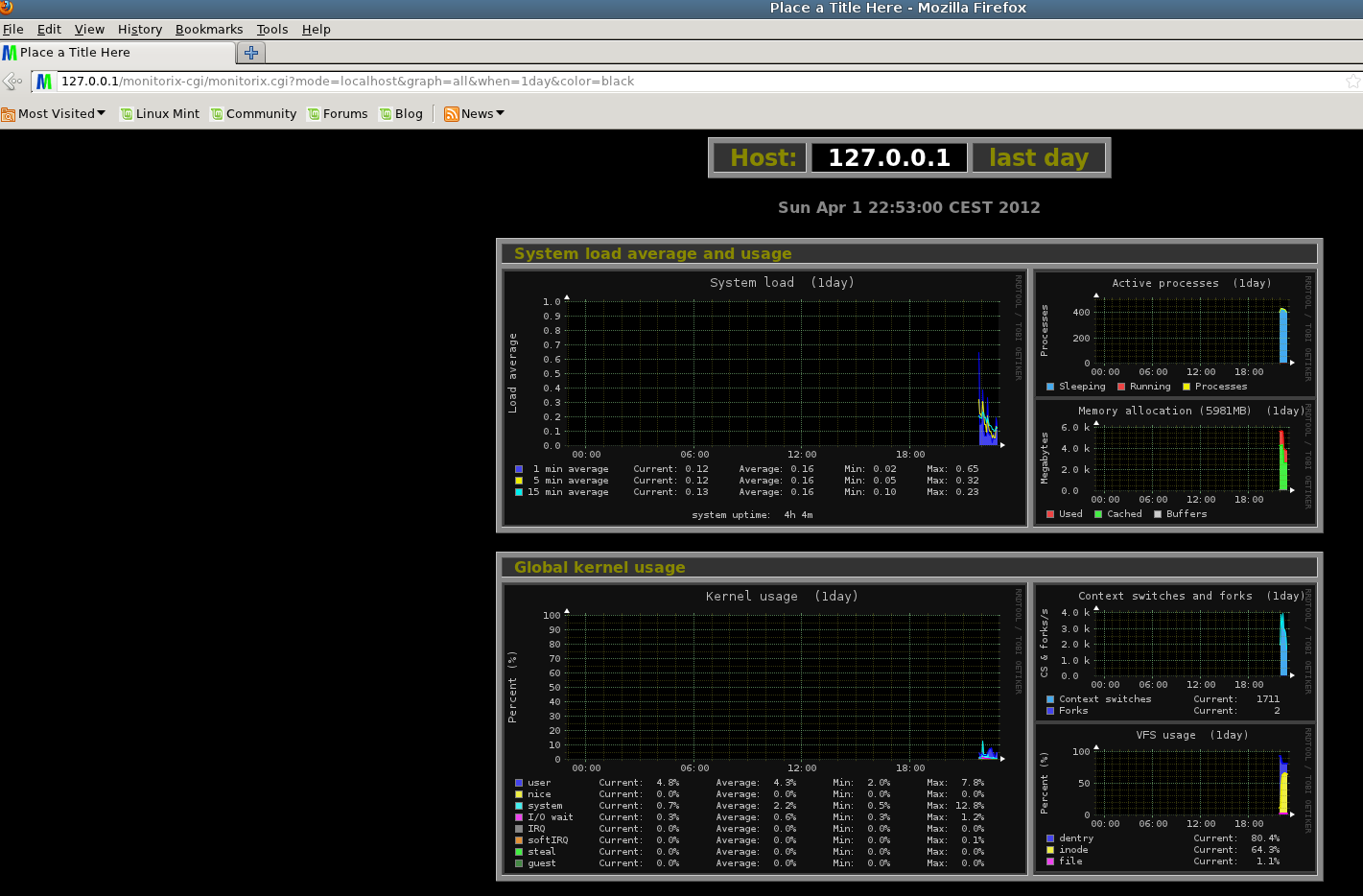
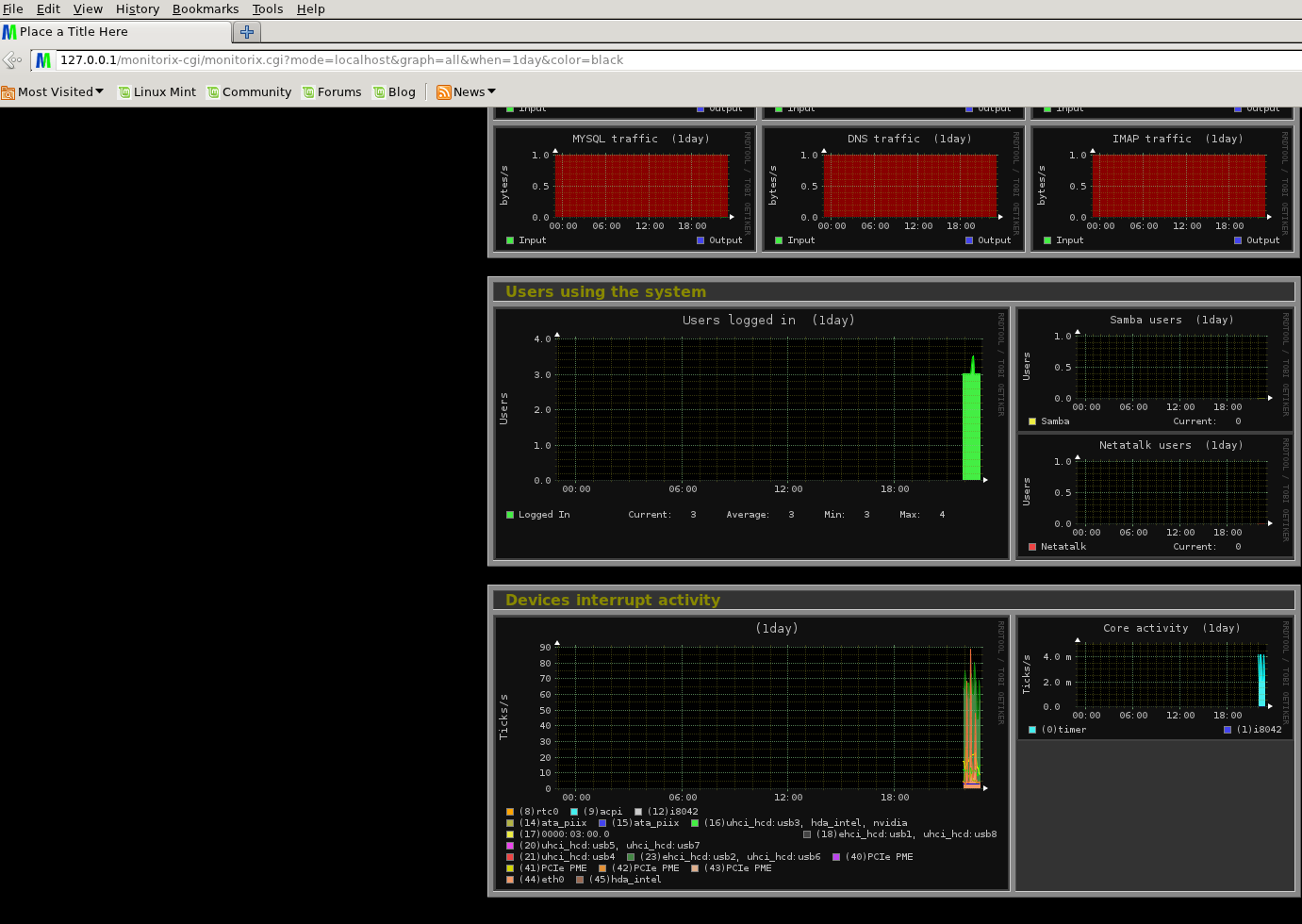
Monitorix is a free, open source, lightweight system monitoring tool designed to monitor as many services and system resources as possible. It has been created to be used under production UNIX/Linux servers, but due to its simplicity and small size you may also use it on embedded devices as well.
It mainly consists of two programs: a collector called monitorix, which is a Perl daemon that is started automatically like any other system service, and a CGI script called monitorix.cgi.
All of its development was initially created for monitoring Red Hat, Fedora and CentOS Linux systems, so this project was made keeping in mind these type of distributions. Today it runs on different GNU/Linux distributions and even in other UNIX systems, like FreeBSD and OpenBSD.
More info about Monitorix can be found in this Link
1- Installation
Install in Monitorix in Ubuntu
First we need to install some dependencies, open terminal and enter the following command:
sudo apt-get install apache2-mpm-itk apache2-utils apache2.2-bin apache2.2-common libaprutil1-dbd-sqlite3 libaprutil1-ldap libdbi-perl rrdtool librrds-perl libwww-perl libemail-date-format-perl libmime-lite-perl libmime-types-perl libnet-daemon-perl libplrpc-perl nullmailer
Now, download the last release from Download page (.deb package) and install it using the command:
sudo dpkg -i monitorix_2.5.0-izzy1_all.deb
Now start Monitorix and apache:
sudo /etc/init.d/monitorix start
sudo /etc/init.d/apache2 restart
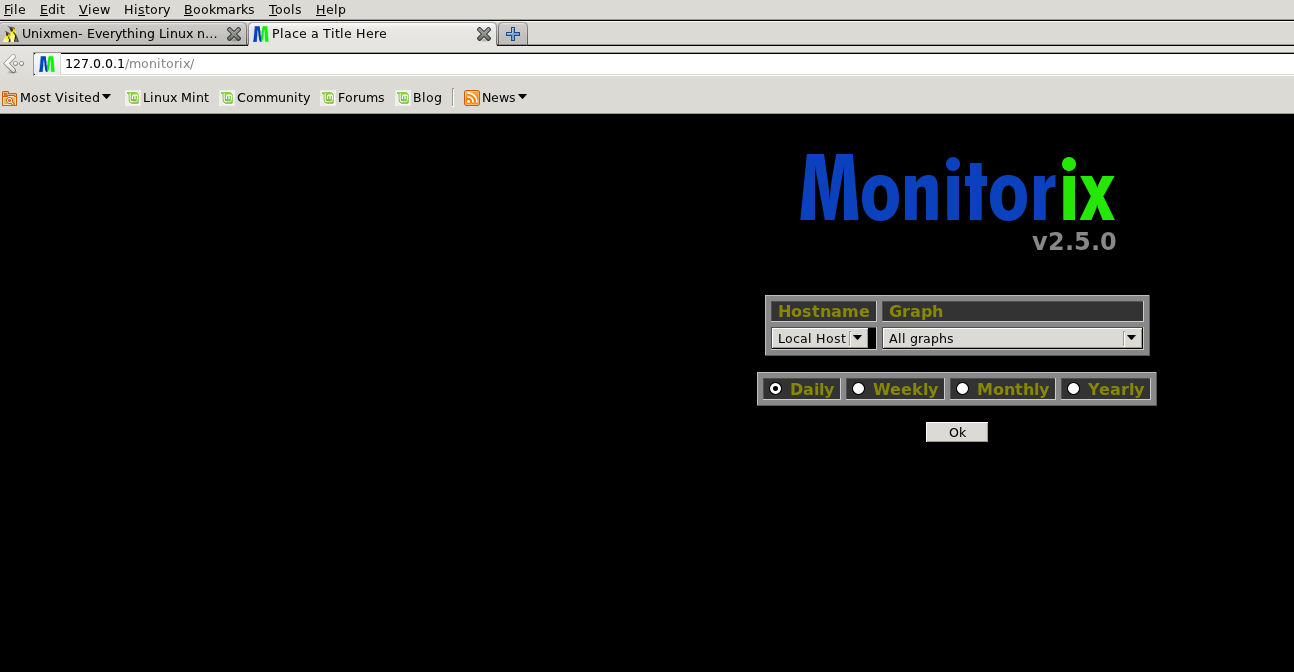
Now Brows to http://ip/monitorix to open Monitorix
Install in Centos/Fedora
on terminal en under root run ;
yum install httpd rrdtool rrdtool-perl perl-libwww-perl perl-MailTools perl-MIME-Lite perl-CGI
Download and install the rpm package
rpm -ivh http://www.monitorix.org/monitorix-2.5.0-1.noarch.rpm
start apache and Monitorix
service monitorix start
service httpd restart
open your browser and go to http://ip/monitorix
2- Configuration:
Configuration file is : /etc/monitorix.conf
Apache config:
onder Ubuntu/Mint : /etc/apache2/conf.d
onder Fedora/Centos /etc/httpd/conf.d
To allow connect to Monitorix from any where, change the config apache to Allow from all
Like us on Facebook
This week Top Posts 
Top Things to do After Installing Ubuntu 13.04 ‘Raring Ringtail’ : Ubuntu 13.04 Raring Ringtail final is almost out. The final release it scheduled for release on Apri...0 comment(s) |
Steganography- Hide Your Files Inside An Image in Linux : Nowadays, our personal computer is not only a work tool, it is also our private space where we sto...0 comment(s) |
Install lamp with 1 command in Ubuntu 12.10, 13.04 Raring Ringtail & LinuxMint13 : Updated: 10/09/2012 :LAMP (Linux, Apache, MySQL and PHP) is an open source Web development platform ...0 comment(s) |
Howto: Upgrade to Ubuntu 13.04 Raring Ringtail from 12.04, 12,10 | Desktop & Server : Updated 05-04-2013: Ubuntu 13.04 Raring Ringtail will be released Soon, If you have ubuntu 12,10, 12...0 comment(s) |
How to use Remote Desktop in Ubuntu : Sometimes, we need to access our computer from other locations when we’re not at home and such. This...0 comment(s) |
Howto- Resolve nosound problem on Ubuntu 13.04 Raring Ringtail,12.10 and Older : Updated 05/04/2013 : One of the common issues facing Ubuntu users after installing or upgrading Ubun...0 comment(s) |
Recent Posts
- Secure File from Removal in Linux and Unix
- How to Install Nginx on FreeBSD 9.x
- Create a Launcher in Ubuntu Using Bash
- Scan Your Home Network With Nmap
- Steganography- Hide Your Files Inside An Image in Linux
- Unix/Linux File Recognition. Did You Know?
- Migrate from MySQL to MariaDB in FreeBSD
- Connect Your Android Galaxy Tablet to Ubuntu via USB
- ElementaryOS Beta 1 and 2 Comparison and Review
- Introduction to the Linux Command Line
Recent Comments


SK
| #
Yes we can. What kind of help you need? We are doing outsourcing and technical support for Linux and Open source worldwide. To know more about the details visit here.
ClintB
| #
After install as above, run shell script /opt/Citrix/ICAClient/wfica.sh manually and note lib errors still occur. I had the x64 motif loaded but had to manually install the x86 too. Got that from http://rpmfind.net/linux/rpm2html/search.php?query=libXm.so.4 Even after that, I still had to do a “yum install alsa-lib.i686 alsa-lib.x86_64″ to resolve any additional libasound.so.2 errors. Once those two lib issues were resolved, Citix Web Interface launched apps fine by telling browser to open launch.ica using /opt/Citrix/ICAClient/wfica.sh. Good luck Ernesto!
AD
| #
I need some Help on Linux,can you guide me ?
Edson Carlos
| #
In debian no found. I need link download install in linux debian
jacky can
| #
You can actually unzip your secret archive by leaving out the -t option, instead using:
unzip newPhoto.jpg